
Why captions are worth the extra two minutes
People read their videos now. In a Preply survey of 1,265 Americans, 50 percent said they watch content with subtitles most of the time, and among Gen Z the share of frequent users jumped to 70 percent. The same survey found that 41 percent prefer subtitles for online content like YouTube and TikTok. One honest caveat: the page was updated in 2026, but the fieldwork date is not stated and may be older. Even so, anyone who has watched a Reel in a waiting room knows the habit is real.
Captions also do quieter work. They help viewers who are deaf or hard of hearing, they carry your message in a noisy café, and they give you a second chance to land the point when someone half listens.
Three ways to add them
- Inside a clipping tool. Opus Clip adds animated captions automatically when it cuts your shorts, with emoji and keyword highlighting even on the free plan.
- In a general editor. CapCut can do the popular one word at a time style, but it takes a few steps. In a walkthrough of the desktop app, the creator generates Auto Captions, highlights them, then picks a caption animation such as Spring or Bounce Out. When we tested Kapwing on a free account, auto subtitles for a 7 second clip took about 25 seconds and used 1 of the 10 free credits, and free exports stopped at 720p with a watermark.
- In the app you record with. BIGVU's AI Subtitle Generator transcribes your audio, creates timed subtitles, and lets you style them with your Brand Kit colors and fonts, so you skip the export and import shuffle between apps.
Whatever you choose, read the captions once before posting. Names, product terms, and numbers are where automatic transcription slips most often, and a misspelled brand name in giant letters is hard to unsee.
![[object Object]](/blog/images/airtable/section1-how-to-caption-and-trim-videos-master.webp)
What Opus Clip does well, and what it costs
Opus Clip (the company also calls it OpusClip, and plenty of people search for opusclips) is built for one job: you hand it a long video, and it hands back a stack of vertical shorts. Paste a YouTube link or upload a file, pick a clip length, and wait. Each clip gets a Virality Score, reframing to 9:16, and captions.
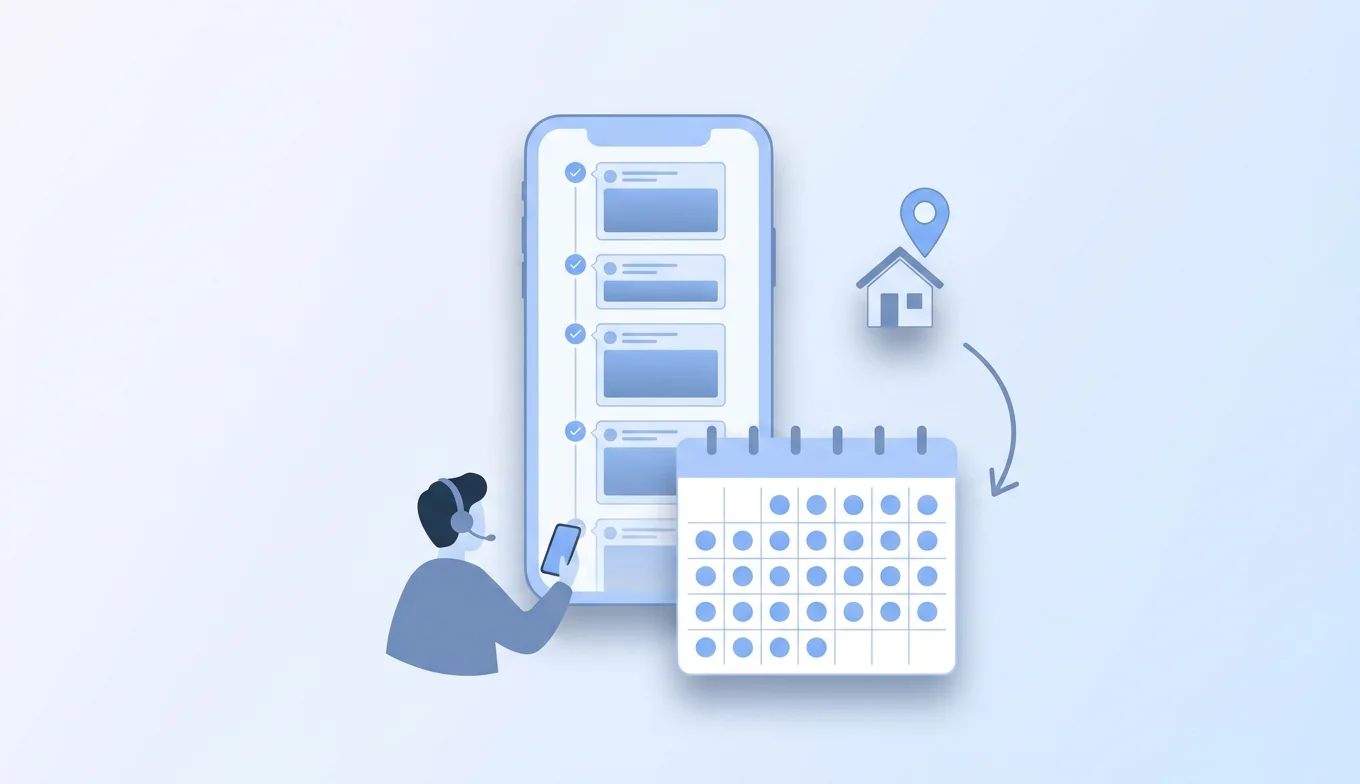
Stephen W. Thomas, who has paid for the tool for more than a year, ran a 21 minute video through it and got 26 clips back. He likes the way it pulls lines from different parts of a recording and stitches them into one short instead of grabbing a single 30 second chunk, and he uses its built in scheduler to post to TikTok, Instagram, and YouTube.
Current plans
As listed on the Opus Clip pricing page at the time of writing:
- Free: 60 credits a month, a watermark, no editing, and clips that can no longer be exported after 3 days.
- Starter: $15 a month, monthly only, with 150 credits, animated captions in more than 20 languages, filler and silence removal, and no watermark.
- Pro: $29 a month, or $14.50 a month billed annually ($174 a year), with 300 credits a month, AI B roll, a scheduler, and a team workspace with 2 seats.
Credits are tied to how much video you import, so a weekly hour long podcast will use up a small plan faster than a few short talks will. Check the page before you buy, because these numbers change.
![[object Object]](/blog/images/airtable/section2-how-to-caption-and-trim-videos-master.webp)
Where Opus Clip falls short
The reviews worth reading come from people who use the tool every week, and they tend to describe the same rough edges.
- Clips lose context. Chris of Min Media, who used it for nine months for his own channels and for clients, says some clips miss the setup a new viewer needs, so he often edits them himself or uses only the automatic captions. Thomas asks one question of every clip before publishing: what value does this add?
- Reframing needs babysitting. Footage that is not a full screen talking head, like a tutorial or screen recording, can end up small in the vertical frame. Thomas fixes the crop by hand, and the crop can reset when the clip jumps to a new segment.
- Review time adds up. A long post on r/opusclip argues that the Virality Score shifts between runs and that cuts sometimes start or end mid thought. That is one user's experience, but it matches what the paying reviewers describe.
None of this makes Opus Clip a bad tool. It means you still need to watch every clip before it goes out. A useful habit: skim the transcript of each suggested clip first, throw out the ones that make no sense on paper, and only then watch the survivors.
![[object Object]](/blog/images/airtable/section3-how-to-caption-and-trim-videos-master.webp)
How to trim a video on your iPhone
For a single clip you shot yourself, the fastest iphone video editor is the one already installed. The Photos app trims without any download.
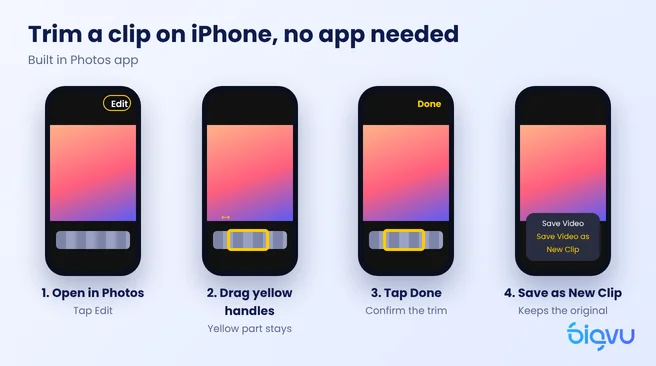
- Open the video in Photos and tap Edit (the icon that looks like a set of sliders).
- Drag the yellow handles at either end of the timeline. The yellow part stays; everything outside it gets cut.
- Tap Done, then choose Save Video to replace the original or Save Video as New Clip to keep both.
That last choice matters more than it looks. As Gauging Gadgets points out in its iPhone walkthrough, saving over the original means you no longer have the untrimmed version. If there is any chance you will want those first seconds back, save a new clip.
The catch is that Photos only trims the start and the end. If you stumbled halfway through, you need a proper editor. Plenty of iphone video editing apps can split a clip, and a video trimmer online free will do in a pinch, though free web tools often watermark the export or cap the resolution, as Kapwing did in our test.
Edit by deleting words instead of scrubbing a timeline
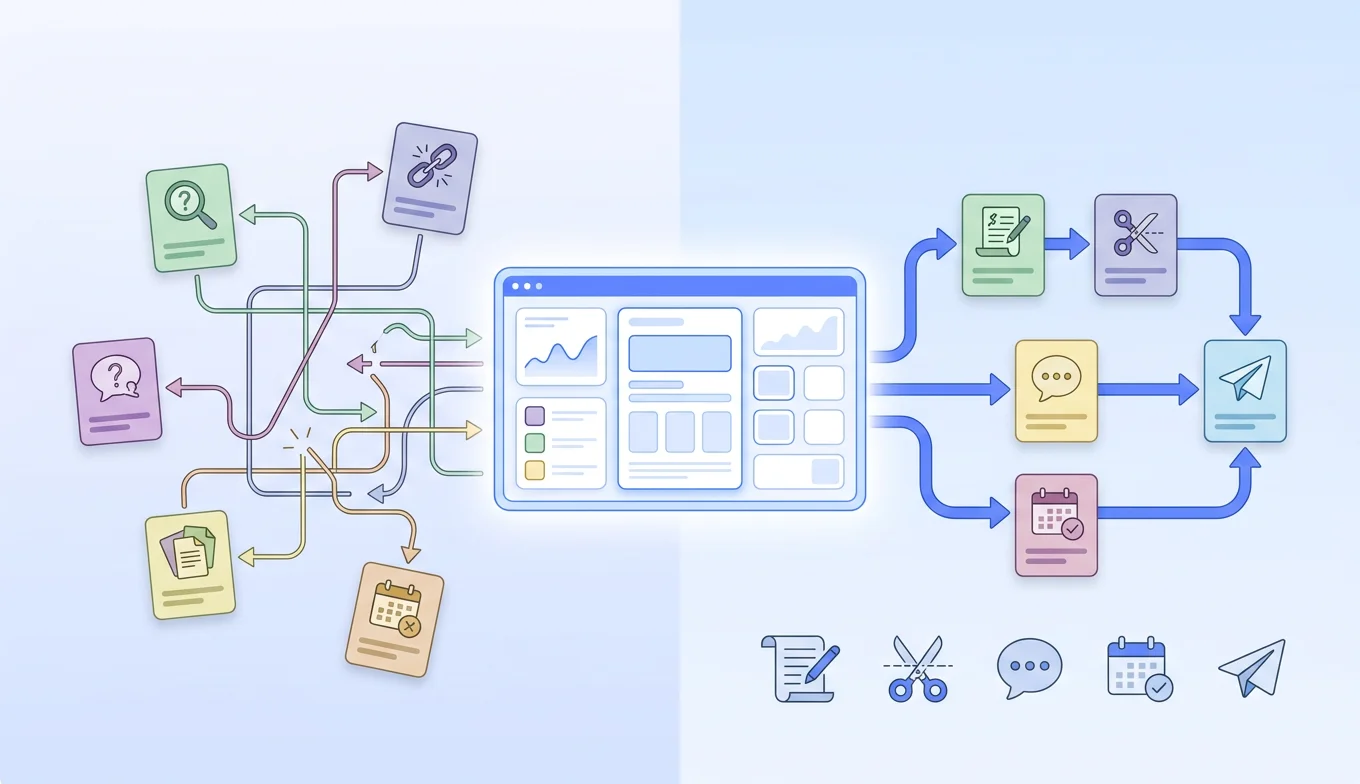
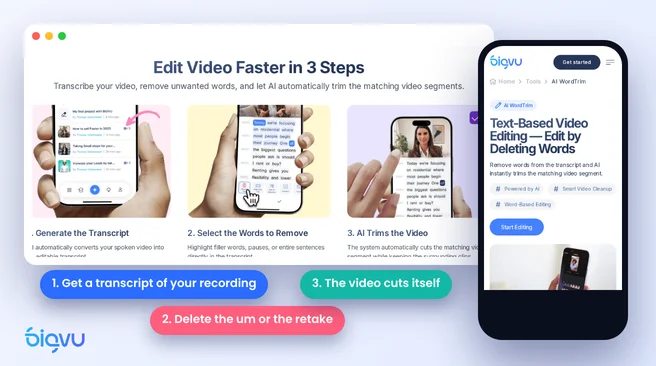
For talking head videos, there is a quicker way to cut the middle. BIGVU's AI WordTrim turns your recording into a transcript. Highlight an "um," a false start, or a whole sentence, delete it, and the matching piece of video disappears with it. You read your video instead of hunting for the stumble on a waveform.
A simple routine that holds up week after week
- Record with a script. The BIGVU teleprompter scrolls your lines next to the lens, so there is less to fix later.
- Cut with WordTrim. Remove filler words and retakes from the transcript.
- Add captions. Generate subtitles and apply your brand styling in the same app.
- Make shorts if you need them. For webinars and longer talks, AI Auto Shorts finds highlight moments and trims them into vertical clips you can review and edit before posting.
If you would rather not edit at all, BIGVU also runs SuperAgent, a done for you service where a team writes the scripts, edits in your style with captions and thumbnails, and publishes eight videos a month for your approval. Either way, the goal is the same: clean cuts, readable captions, and a video people finish.