
How to Use a Teleprompter: Set Up in 5 Steps
The teleprompter started as motorized scrolls of paper; its best-known early moment came when former President Herbert Hoover used one at the 1952 Republican National Convention. Today it runs on the phone in your pocket. Here's how to set one up for a natural take.
- Write or load your script. Paste your text, or generate a draft with the AI Script Generator. Keep sentences short, and add Cues where you want a pause or a reminder.
- Position the device at eye level. Mount your phone or tablet so the lens is level with your eyes, and place the script window right under the lens.
- Set readability and light. White text on a dark background, a font size you can read without squinting, and narrow margins so your eyes don't scan side to side. In a dark room, turn on Light Ring so your screen edges light your face.
- Choose how the script moves. Set a words-per-minute speed (130–170 is conversational), or turn on Voice Control so the script follows your voice. On desktop, the online teleprompter lets you pause with the space bar.
- Do one test take. Watch it back for pace and eye movement, adjust, then record for real.
The pros and cons of prompting
- Consistency: you hit every key point without forgetting details or data.
- Fewer retakes: no memorizing, so short videos take minutes, not hours.
- The "unnatural" trap: the biggest risk is sounding robotic by chasing the scrolling text. The tips below fix that.
- Visual tells: wide text or a camera too close makes your eyes visibly scan.
![[object Object]](/blog/images/airtable/section1-master-the-teleprompter-proven-tips-for-natural.webp)
Tips 1–2: Pacing That Follows Your Natural Rhythm
Tip 1: Let the script follow your voice
The most common mistake is treating the teleprompter as a race. If the text moves at a fixed speed, you either rush to keep up or stall while it runs ahead. Voice Control in BIGVU removes that pressure: the script scrolls while you talk and stops when you pause, showing "Waiting for voice…" until you start again. You can take a breath, smile, or let a point land, and the script waits.
- Set the threshold: drag the handle on the mic meter so normal speech moves the script but background noise doesn't.
- Keep your speed setting: Voice Control only starts and stops the scroll; your words-per-minute speed stays the same.
- Override anytime: a tap pauses manually, and a manual pause always wins over voice.
Tip 2: Plan your pauses with Cues
A standard conversational pace is 130 to 170 words per minute. Adjust the machine to match your voice, never your voice to match the machine. Then build the rhythm into the script itself with Cues:
- Pause: the prompter stops at that point until you tap (or press Space on the web). Use it before a key point or a demo.
- Pause for a few seconds: a timed beat, then the script carries on by itself. Good for letting a line land.
- Note: a private reminder like "Smile — look into the lens". It shows on your prompter, but it's never read out and never appears in captions or exports.
No cues in your app? Mark pauses with a line break or a slash, and bold the words you want to stress.
![[object Object]](/blog/images/airtable/section2-master-the-teleprompter-proven-tips-for-natural.webp)
Tips 3–4: Eye Contact and Framing That Don't Give the Reading Away
Tip 3: Keep your eyes near the lens
The most common tell of teleprompter use is shifty eyes. It happens when the text is too wide or you're too close to the camera.
- Distance is your friend: the farther you are from the camera, the less your eye movement shows.
- Narrow the text: keep margins tight and the script window right under the lens to cut side-to-side scanning.
- Don't anchor on the scroll: blink normally and let your eyes rest on phrases, not individual words.
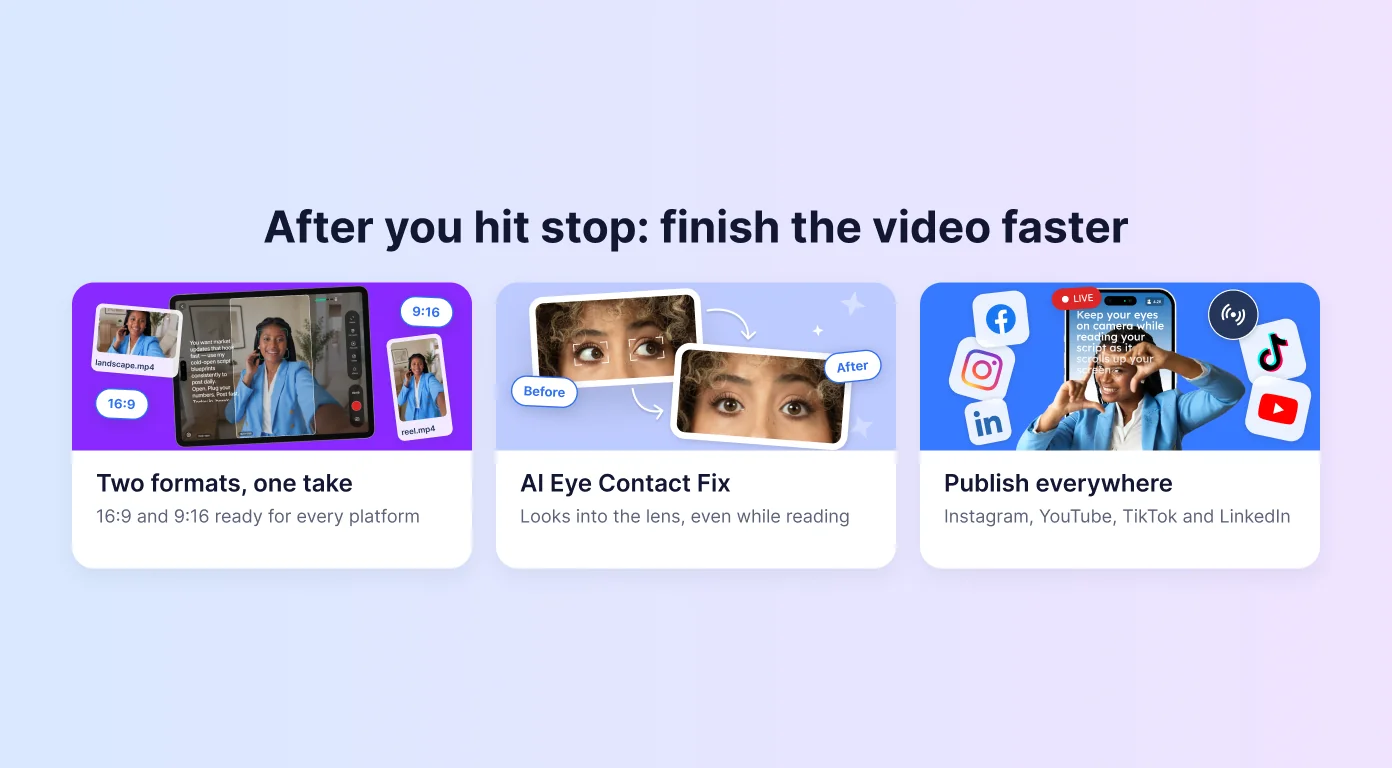
- Fix it after: BIGVU's AI Eye Contact Fix corrects any remaining downward gaze after recording.
Tip 4: Match your energy to the frame
A tight headshot is an intimate conversation: subtle expressions and a softer tone. A full-body shot needs more projection and bigger gestures to fill the frame. If you record with DualShot, which gives you a horizontal and a vertical version from one take, stay centered and keep gestures inside the horizontal frame so both versions work.
![[object Object]](/blog/images/airtable/section3-master-the-teleprompter-proven-tips-for-natural.webp)
Tips 5–6: Script for the Ear, Not the Eye
Tip 5: Write exactly like you speak
Written scripts don't sound like we talk. A script written for the eye will sound read, no matter how good your delivery is.
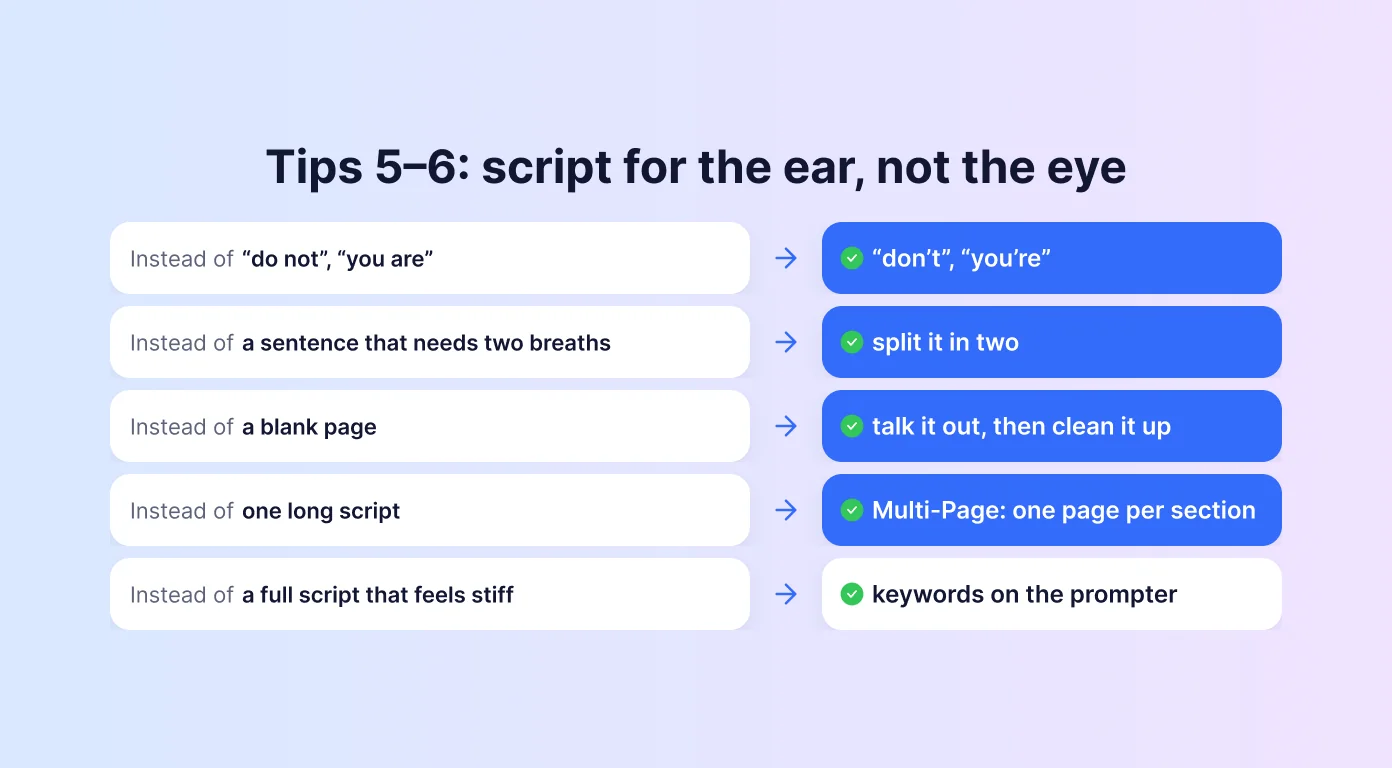
- Talk it out first: record yourself explaining the idea, then clean up the transcript instead of starting from a blank page.
- Use contractions: "don't" not "do not", "you're" not "you are".
- Short sentences, active verbs: if a sentence needs a second breath, split it.
- Read it aloud once: anything you stumble on, rewrite.
Tip 6: Break long scripts into pages, or into keywords
Long scripts are where delivery falls apart. In BIGVU, Multi-Page Mode splits the script into pages: the prompter stops at the end of each one, keeps the last lines on screen, and waits for "Tap for next page". You get a natural reset between sections of a course lesson or webinar.
If reading a full script still feels restrictive, put keywords or bullet points on the teleprompter instead and speak around them. The prompter becomes a safety net rather than a script.
Either way, don't over-rehearse. Know the flow and the pauses well enough to feel confident, but not so well that the delivery loses its spark.
After You Hit Stop: Finish the Video Faster
A good take is only half the job. In BIGVU, the steps after recording happen in the same app:
- Trim and captions: cut the start and end, and add auto-captions for sound-off viewers.
- Brand Kit: apply your logo, colors, and lower thirds in one tap.
- Two formats: with DualShot on, you already have a 16:9 and a 9:16 version ready for each platform.
- Publish: post straight to Instagram, YouTube, TikTok, and LinkedIn.
Comparing apps? See our best teleprompter app guide, or the best iPad teleprompter apps if you record on a tablet.