
What to Look For in an iPad Teleprompter App
The market is flooded with teleprompter apps priced from free to $80/year. Most do the same core thing: display scrolling text while you record. The apps worth your time go further. Here's what separates them.
Scroll control that matches your delivery
Fixed-speed scrolling creates a mechanical delivery — your cadence adapts to the app instead of the other way around. The best apps offer variable speed, voice-activated scrolling that follows your pace, or per-line speed adjustment based on sentence length. On an iPad positioned 4–6 feet away, a slightly slower scroll gives you more time to read without darting your eyes — so this setting matters more than it does on a phone held at arm's length.
iPad-specific display features
The iPad's screen real estate enables font sizes and margin widths that a phone simply can't match. Apps that take advantage of this — centering text close to the lens with large, adjustable fonts — make the reading much less detectable to viewers. Mirror mode matters too: if you're using a physical glass teleprompter rig with your iPad as the display source, you need reliable horizontal flip with no lag.
Free plan usability
Several apps lock their core feature before you've recorded a single video. The useful distinction isn't whether an app has a free tier — it's whether the free tier is genuinely usable or just a tease. Apps that let you test actual recording on the free plan are worth your time. Apps that prompt you to subscribe within 30 seconds of opening are not.
What happens after you stop recording
A teleprompter app that ends at the raw recording hands you more work. Every step — trimming, captions, branding, publishing — becomes a separate tool with a separate login. For anyone producing video regularly, the total workflow cost compounds fast. The apps that continue past recording — even with basic trimming and caption tools — reduce that overhead significantly.
![[object Object]](/blog/images/airtable/section1-10-best-ipad-teleprompter-apps-2026-business-creators-guide.webp)
The 10 Best iPad Teleprompter Apps in 2026
1. BIGVU — Best full-workflow teleprompter
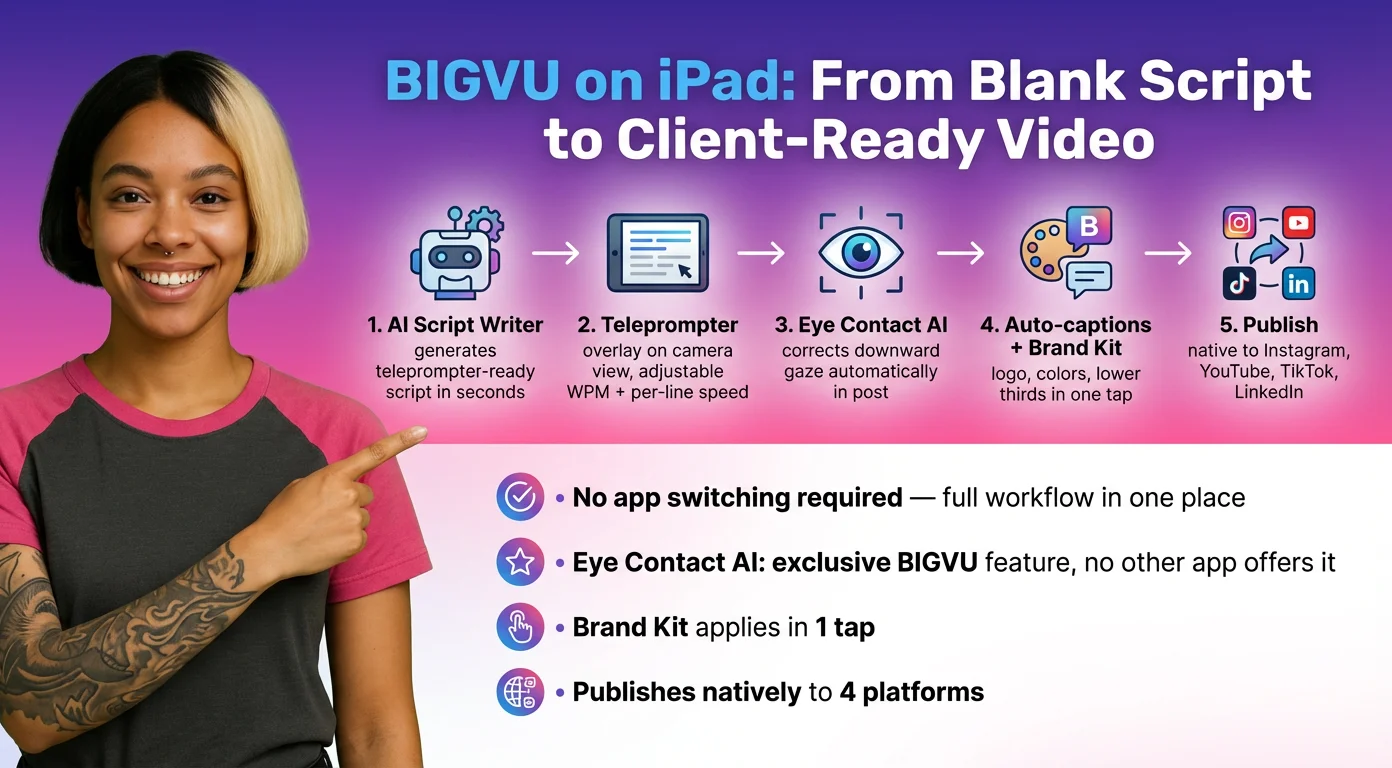
BIGVU is the only app here that doesn't stop when the recording does. Script the video with the AI Script Writer, record with the teleprompter, then trim, add auto-captions, apply your logo and brand colors, fix eye contact with AI, and publish — all in the same app. On iPad, Voice Control makes the script follow your voice: it scrolls while you talk and waits when you pause. DualShot records a horizontal 16:9 and a vertical 9:16 video in one take. You also get adjustable WPM, font size, and per-line speed variation. Free plan includes the teleprompter and basic recording. Available on iOS, Android, and the web.
2. Teleprompter Premium — Best for mirror-mode rigs
Solid choice for creators using physical glass teleprompter hardware with their iPad as the display. Mirror mode is reliable, scroll control is precise, and the interface handles large scripts without lag. Doesn't help with editing or publishing, but does its one job well. Paid plans start around $10/month.
3. Teleprompter.com — Best scroll modes
Three scroll modes set it apart: Fixed Speed, Timed Scrolling, and Auto Scroll driven by voice recognition. Color-coded stage directions let you embed cues like [pause] or [look left] directly in the script. Supports 4K recording up to 50fps. The subscription prompt is the first thing you see when you open the app — the free tier exists but takes a dismissal to reach it.
4. PromptSmart Pro — Best for long-form presenters across devices
VoiceTrack listens to your speech and scrolls at your pace. Pause mid-sentence and the teleprompter pauses with you; resume and it catches up. A good fit for webinars, course videos, and presentations, and it works on iPhone, iPad, Android, and desktop. It doesn't edit or publish.
5. Teleprompter Pro (by Apps Ltd) — Best for Apple studio setups
AirPlay and HDMI output let your iPad act as the display for an external monitor setup while a separate camera records. Remote control via Join/Host pairs with a second device for hands-free scroll control. SRT caption export times itself to your scroll speed. Mirror mode for hardware rigs is locked to the paid plan.
6. Speeko Teleprompter — Best for beginners
Minimalist interface with fast setup. Paste your script, set your speed, hit record. A good starting point for anyone new to teleprompter recording.
7. CuePrompter — Best browser-based option
Free, browser-based, and requires no download. Works on iPad in Safari. It doesn't record, so you'll need a separate camera setup, but the price (free, no account) makes it a legitimate option for light use.
8. Teleprompter Lite — Best free-only option
A free teleprompter with no subscription pressure. Basic scroll speed control, no recording, no editing. If you only need scrolling text alongside a camera app, it clears that bar.
9. iPrompter — Best for presenters
Designed with stage presentations in mind. Supports external display output via AirPlay, useful when your iPad feeds a confidence monitor. Script import from Google Docs and Dropbox reduces manual entry.
10. Video Teleprompter — Best for multi-device setups
Remote control from a second device is the standout: one person runs the scroll while another reads. Useful for small teams recording product demos or interviews where a producer controls pacing off-camera.
![[object Object]](/blog/images/airtable/section2-10-best-ipad-teleprompter-apps-2026-business-creators-guide.webp)
On-Camera Delivery That Doesn't Look Scripted
A teleprompter solves the forgetting problem. It doesn't automatically solve the reading problem. Viewers are forgiving about imperfect production — they are not forgiving about someone who clearly looks like they're reading words off a screen.
Position the iPad for minimal eye movement
The closer your text is to the camera lens, the less noticeable your eye movement is to the viewer. On an iPad, this means centering your text block tightly rather than using full screen width, and mounting the device at eye level so you're looking straight ahead rather than down. At 4–5 feet distance, most viewers can't detect the small lateral movement required to read centered text. At 2 feet with wide margins, the reading is obvious.
Slow down your scroll, not your speech
The instinct when first using a teleprompter is to speed up the scroll so it matches your natural speaking pace. The better move is to slow the scroll and allow yourself to speak ahead of it slightly — so you're reading a few words ahead and delivering from memory for the next beat. This creates a rhythm that sounds far more conversational than matching your delivery word-for-word to the scroll.
Script for how you talk, not how you write
A teleprompter can only deliver what's in the script. If the script is formal, passive, and full of long sentences, the delivery will be formal, passive, and long. Write in the same sentence rhythm you use when explaining something to a colleague. Short sentences. Active verbs. Contractions where you'd naturally use them. A script that sounds good when read aloud at normal speed is the most important production decision you can make before hitting record.
Don't anchor on the scroll
Blink normally. Let your eyes land on different words rather than tracking the scroll smoothly — smooth tracking is what makes reading look like reading. Natural reading involves micro-pauses, small jumps, and occasional re-reads. Mirroring those patterns while using a teleprompter is the difference between a delivery that feels present and one that feels pre-recorded in the worst sense of the word.
![[object Object]](/blog/images/airtable/section3-10-best-ipad-teleprompter-apps-2026-business-creators-guide.webp)
BIGVU on iPad: From Blank Script to Client-Ready Video in One Place
Most teleprompter apps hand you a raw video file and step aside. BIGVU continues past the recording because the recording isn't the deliverable — the finished video is.
Write the script before you open the camera
BIGVU's AI Script Writer is built into the same interface as the teleprompter. Give it your topic — a client intro, a LinkedIn post-to-camera, a product walkthrough — and it writes a script structured for teleprompter delivery: short sentences, natural hooks, a clear close. Load it straight into the teleprompter.
Let the script follow your voice
Turn on Voice Control and the script scrolls while you talk and waits when you stop, showing "Waiting for voice…". Your speed setting stays the same; your voice just starts and stops it. On an iPad set 4–6 feet away, that means no rushing to catch up and no stalling while the text runs ahead. A threshold handle on the mic meter keeps background noise from moving the script.
Plan pauses and pages for longer videos
Add Cues to the script: a Pause that waits for your tap, a timed pause that carries on by itself, or a private Note like "slow down here" that never appears in captions or exports. For course modules and webinars, Multi-Page Mode stops at the end of each page so you can reset between sections.
Record two formats with DualShot
Turn on DualShot, drag the horizontal frame into place, and record once. You get a 16:9 video for YouTube, LinkedIn, or your website and a 9:16 video for Reels, TikTok, and Shorts — no second take.
Light your face with Light Ring
The iPad's large screen makes a good light source. Light Ring turns its edges into a warm white ring light (Thin, Medium, or Thick) when you record with the front camera.
Fix eye contact, then publish
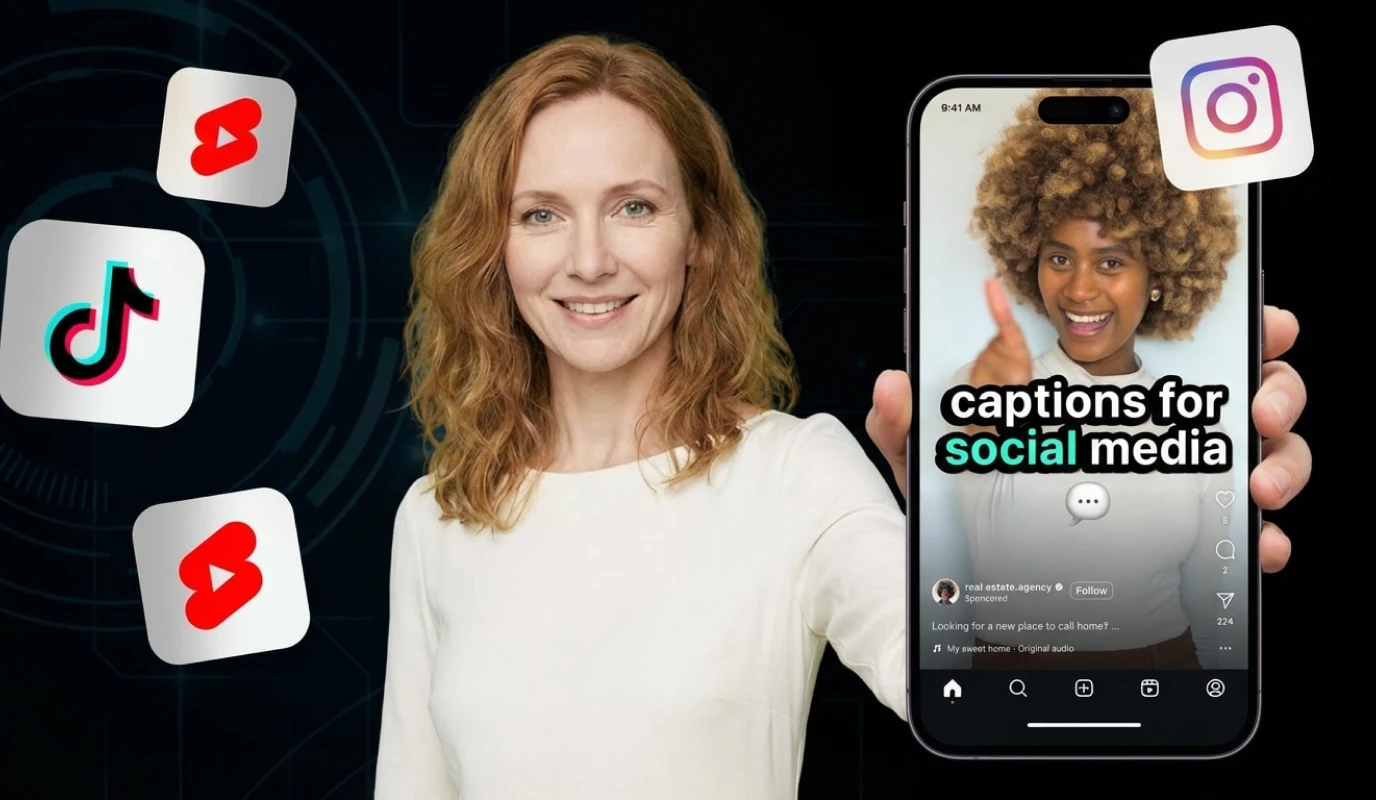
After recording, Eye Contact AI corrects the slight gaze drift every teleprompter creates, so it looks like you spoke to the viewer throughout. None of the other apps in this list offers it. Then BIGVU adds automatic captions, applies your Brand Kit, and publishes natively to Instagram, YouTube, TikTok, and LinkedIn. The video is done when you're done in BIGVU.
Which iPad Teleprompter App Is Right for You?
The app you need depends on where your workflow starts and ends.
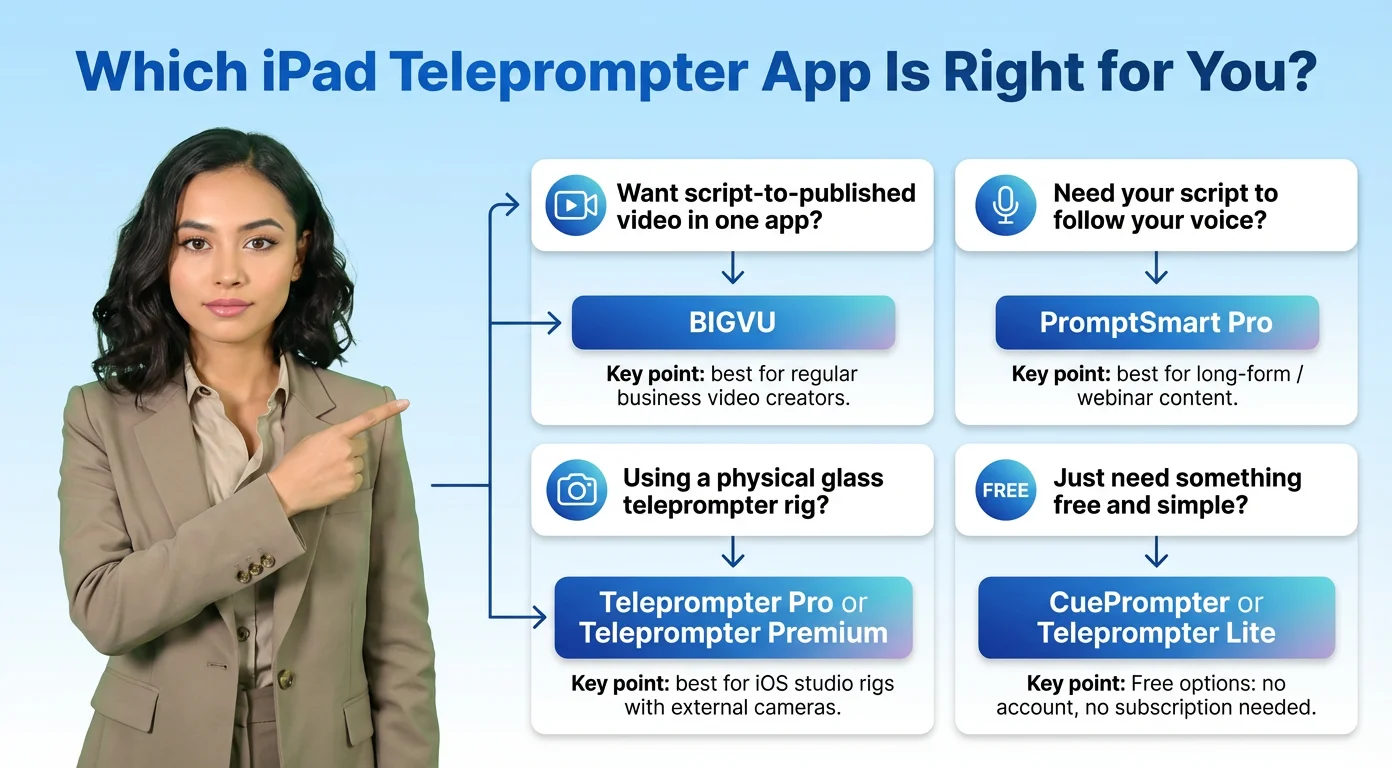
If you want one app from script to published video — BIGVU
BIGVU is the right choice for business owners, coaches, consultants, and anyone producing video regularly. The AI Script Writer removes the blank page, Voice Control keeps delivery natural, DualShot gives you both formats in one take, and Eye Contact AI, auto-captions, Brand Kit, and native publishing finish the job. Start with the free plan, which includes the teleprompter and basic recording.
If your script needs to follow your voice — BIGVU or PromptSmart Pro
Both scroll as you speak and pause when you pause. Choose BIGVU if you also want to record, edit, and publish on the iPad; choose PromptSmart Pro if you present long-form talks and want the same prompter on desktop.
If you use a physical glass rig — Teleprompter Pro or Teleprompter Premium
Both handle mirror mode reliably. Teleprompter Pro adds AirPlay/HDMI output and SRT caption export timed to your scroll speed. Teleprompter Premium is the simpler, lower-cost option for the same basic mirror-mode use.
If you just need something free — CuePrompter or Teleprompter Lite
No account, no subscription, no editing features. If you already have a camera and editing workflow and just need scrolling text, either clears that bar.