
The Digital Signature: Building Instant Authority with Your Video Logo
Your video logo is more than just a graphic; it is your digital signature. In a crowded social feed where viewers decide to stay or scroll in milliseconds, a well-placed logo provides instant brand recognition. It signals to your audience that they are watching professional content from a trusted source, effectively solving the "production envy" that often plagues small business owners.
Why Your Brand Needs a Visual Anchor
Consistency is the key to building trust. By placing your logo in every frame, you ensure that even a three-second view contributes to your brand's long-term awareness.
- Instant Authority: A logo transforms a casual smartphone recording into a branded asset.
- Content Protection: It discourages others from reposting your hard work without credit, protecting your intellectual property. .
Adding a logo shouldn't be a technical hurdle that creates a production bottleneck. Using the BIGVU platform, you can automate this process so every video you export is perfectly branded without needing a professional editor or expensive software.
Step-by-Step: Adding Your Logo with BIGVU
- Prepare Your File: Use a high-resolution PNG with a transparent background to ensure it blends seamlessly with your footage.
- Upload to the Brand Kit: Navigate to the BIGVU desk or app and upload your logo once. This allows you to apply it to all future projects automatically.
- Choose Your Placement: Position the logo in a corner where it doesn't obstruct key visuals or the BIGVU Captions tool. The top-right or top-left is usually safest for social media overlays.
- Adjust Opacity: If the logo feels too distracting, slightly lower the transparency to create a sophisticated "watermark" effect.
By standardizing your video logo, you eliminate the friction of manual editing for every new post. This small step builds the foundation for a professional video presence, allowing you to focus on the next layer of branding: the sound of your message.
![[object Object]](/blog/images/airtable/section1-how-to-brand-your-videos-add-logos.webp)
Finding Your Brand’s Voice: Mastering AI Voiceover and Professional Audio
The Power of AI Voiceovers for Small Business
For many small business owners, recording a perfect vocal take is a major production bottleneck. Background noise, "ums," and inconsistent tone can undermine your authority. AI voiceovers solve this by providing a polished, professional narration that remains consistent across every piece of content you produce.
- Eliminate Background Noise: No need for a soundproof studio; AI voices are always crystal clear and free of distractions.
- Global Reach: Easily translate your message into multiple languages using diverse AI voice profiles to reach a wider audience.
- Brand Consistency: Use the same voice across all videos to create a recognizable "audio identity" that builds trust over time.
By leveraging AI, you can bypass the technical hurdles of traditional audio recording and focus on the strategy of your message.
Step-by-Step: Adding Professional Voiceover with BIGVU
- Script Your Content: Use the BIGVU AI Magic Writer to craft a concise script. Aim for 120-150 words per minute for optimal pacing.
- Select Your Voice: Choose from a library of natural-sounding AI voices that match your brand’s personality—whether professional, friendly, or energetic.
- Sync with Visuals: Use the BIGVU editor to align the voiceover perfectly with your footage or uploaded images.
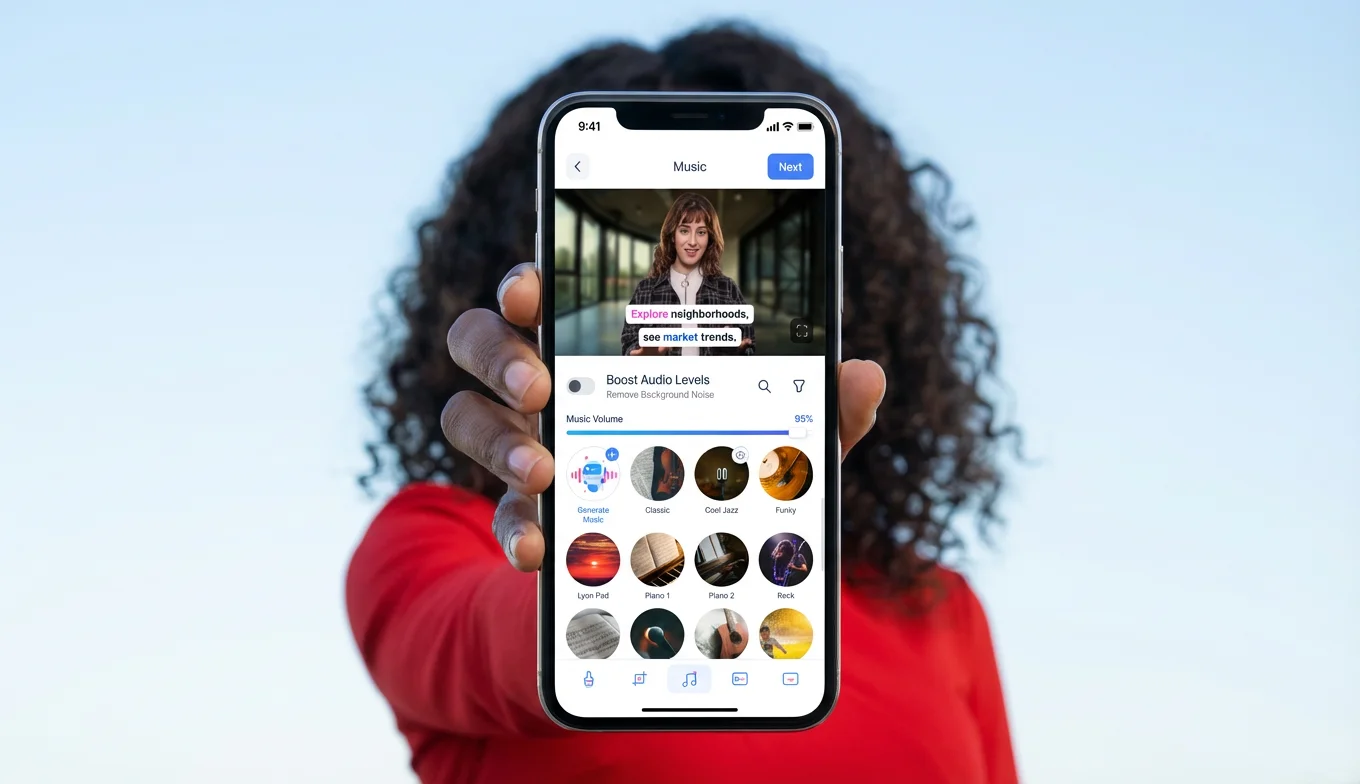
- Fine-Tune Audio Levels: Balance the voiceover with background music to ensure the narration remains the primary focus without being drowned out.
By integrating a professional voiceover, you remove the stress of "perfect" recording sessions while maintaining high production standards. With your visual and audio branding now in place, the final step to maximizing engagement is ensuring your message is accessible to everyone, even with the sound off.
The Final Polish: Maximizing Engagement While Saving on Caption AI Pricing
The ROI of Accessible Content
Adding text overlays isn't just about accessibility; it’s a strategic move to boost your video’s performance across all algorithms.
- Increased Retention: Captions keep viewers engaged longer, especially in "sound-off" environments like public transit or offices.
- SEO Benefits: Search engines can index your video scripts, making your content more discoverable to your target audience.
- Cost Efficiency: By using an all-in-one platform like BIGVU, you avoid "subscription fatigue" by bundling teleprompter, editing, and captioning tools into one price point.
By leveraging BIGVU, you can bypass the high costs of standalone AI captioning apps while maintaining professional standards.
Step-by-Step: Adding AI Captions with BIGVU
- Generate Automatically: Once your video is recorded, select the "Auto-Captions" feature. BIGVU’s AI will transcribe your speech into text in seconds.
- Review and Edit: Use the "Video Maker" to quickly fix any phonetic errors or specific brand names that the AI might have missed.
- Style Your Text: Choose a theme that matches your brand colors. You can highlight key words to draw attention to your call-to-action.
- Optimize for Platforms: Resize your captioned video for TikTok, Instagram, or LinkedIn without losing text clarity or cutting off your logo.
By integrating captions into your workflow, you complete the branding trifecta: a professional logo for authority, a clear voiceover for trust, and accessible text for maximum reach. This systematic approach ensures you aren't just making more videos, but making smarter videos that respect both your time and your budget.