

How CapCut Green Screen Works: Chroma Key, Auto Cutout, and Custom Cutout
Chroma Key: Manual Color Selection
Chroma Key is CapCut's traditional green screen method, available on both desktop and mobile. You drag your background media to the main track, place your green screen footage on the overlay track above it, then open the Cutout tab and enable Chroma Key. From there, use the eyedropper to sample the green color from your footage, then adjust the Strength and Shadow sliders until the edges look clean and natural.
The quality of your result depends almost entirely on how evenly lit your backdrop is. Shadows, wrinkles, and hot spots all create variations in the green hue that the eyedropper can't fully compensate for — you end up with fringe artifacts or semi-transparent patches around hair and shoulders. Even lighting is the fix, not slider adjustments.
Auto Cutout: AI Background Removal Without a Green Screen
Auto Cutout uses AI subject detection to remove backgrounds without requiring a physical green screen at all. You layer your subject footage over the background clip in the timeline, select the subject clip, go to the Cutout tab, and tap Auto Cutout. CapCut detects the person in the frame and erases everything behind them.
It works well in controlled conditions — clean backgrounds, good contrast between subject and surroundings, single person in frame. It struggles with loose hair, complex clothing patterns, and backgrounds that share colors with the subject. Always preview frame-by-frame before exporting, because Auto Cutout can drop patches of clothing or clip ears without warning.
Custom Cutout: Brush-Based Manual Control
Custom Cutout is the most hands-on option. After layering your clips, select the subject clip, go to Remove BG → Custom Removal, and use the Smart Brush to paint over the areas you want to keep. The Smart Eraser cleans up what you don't want. Both Smart tools are Pro-only; the free Eraser works but requires more careful strokes.
This method gives you the most accurate result when Auto Cutout misfires — but it's also the most time-intensive. For a 60-second clip, expect to spend 10–20 minutes refining on complex shots. Best used as a correction tool rather than a first-pass workflow.
![[object Object]](/blog/images/airtable/section1-capcut-vs-bigvu-choose-the-best-tool.webp)
Green Screen Setup: What Determines Quality Before You Open Any App
Even Lighting Is Non-Negotiable
Uneven lighting is the primary reason green screen results look cheap — not the software. Shadows on your backdrop create darker patches of green that read as a different hue, which means the Chroma Key eyedropper can't remove them cleanly without also removing parts of your subject. The fix is two light sources aimed at the backdrop from each side at roughly 45 degrees, positioned to eliminate shadows across the entire surface you'll be visible against.
Soft LED panels work well for this. You don't need studio-grade gear — two decent ring lights or softboxes positioned correctly will outperform expensive equipment positioned carelessly.
Distance and Color Spill
Stand at least 3–5 feet away from your green screen. When you're too close, the green reflects off the backdrop onto your skin, hair, and clothing — a phenomenon called color spill — which shows up as a greenish fringe that no amount of software adjustment fully removes. The more distance between you and the backdrop, the cleaner the key.
Clothing matters too. Avoid green, lime, or any highly saturated cool tone. Solid, mid-range colors — navy, burgundy, charcoal, white — key cleanly. Avoid busy patterns, which can create visual noise against a replaced background.
Backdrop Condition and Alternatives
A wrinkled or creased green screen creates uneven surface reflectance — the same problem as uneven lighting but harder to fix with lights alone. If you're using a fabric backdrop, steam or iron it before shooting. If you don't have a dedicated green screen, a clean, evenly painted green or blue wall works. Matte paint absorbs light more evenly than glossy surfaces.
For BIGVU's AI background removal, physical setup still matters — the AI performs better with clean separation between subject and background, even without green. High contrast between you and your surroundings (a plain light wall if you're wearing dark clothing, for example) improves accuracy regardless of which removal method you use.
![[object Object]](/blog/images/airtable/section2-capcut-vs-bigvu-choose-the-best-tool.webp)
How BIGVU Handles Background Removal — and What Surrounds It
AI Background Removal Without the Timeline
BIGVU's background removal works differently from CapCut's layer-based approach. Rather than building a multi-track timeline with your subject overlaid on a background, you record directly in BIGVU using the teleprompter, then apply background replacement as a post-recording step. Select Replace Background in the editor, choose from BIGVU's library or upload your own branded image, and the AI removes the original background and composites the new one.
The result is comparable to CapCut's Auto Cutout in clean conditions, and BIGVU offers both chroma key (for physical green screens) and AI removal (for plain backgrounds without one). You can't manually paint corrections like CapCut's Custom Cutout allows — if the AI misfires on a complex shot, your options are limited to retaking with a cleaner backdrop.
The Teleprompter Changes the Recording Dynamic
The most significant difference between the two platforms isn't the background removal — it's what surrounds it. When you record in BIGVU, your script scrolls on screen as you speak, which means you maintain eye contact with the lens rather than glancing away to check notes. For talking-head content — coaching tips, product demos, client education, market updates — this produces noticeably more confident, authoritative delivery than trying to memorize or improvise.
CapCut has no teleprompter. You record separately (in your camera app, a dedicated teleprompter app, or CapCut's basic camera), then import the footage for editing. That's an extra tool, an extra step, and an extra subscription if you want a quality teleprompter experience.
Brand Kits, AI Subtitles, and What Comes After the Background Swap
Once your background is replaced in BIGVU, the rest of the workflow stays in one platform. AI subtitles generate automatically with your brand fonts and colors applied. Auto-Shorts creates short clips from long-form content with your branding already embedded. Brand kits mean your logo, color palette, and font choices apply to every video without per-clip setup. Video landing pages with custom CTA buttons let each video function as a lead-generation asset rather than just a social post.
None of this exists in CapCut at any pricing tier. To match the same output, you'd need to add a teleprompter app, a branded captioning service, and a landing page tool — a stack that typically costs $35–95/month before adding AI generation capability.
![[object Object]](/blog/images/airtable/section3-capcut-vs-bigvu-choose-the-best-tool.webp)
CapCut vs BIGVU for Green Screen: Head-to-Head
Where CapCut Wins
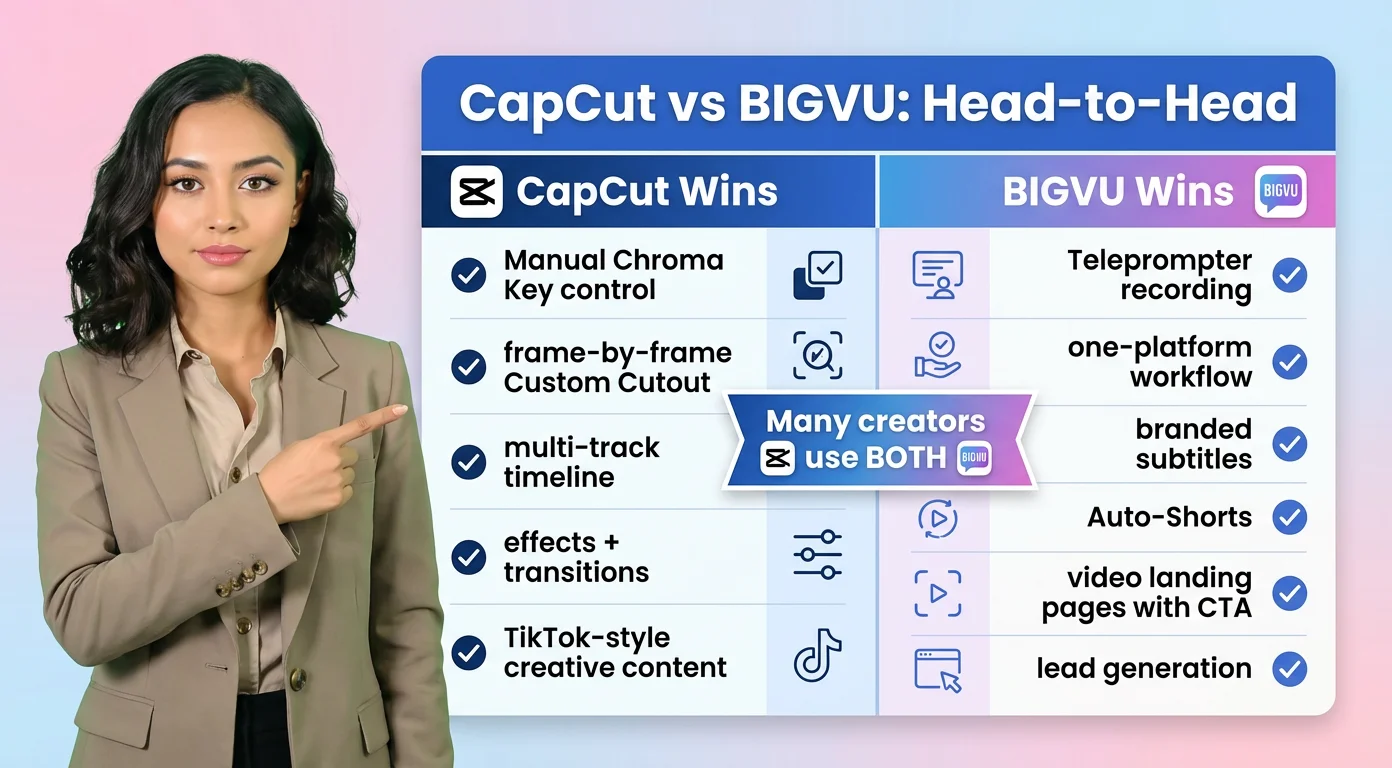
CapCut's green screen toolset is more flexible for creative editing work. Chroma Key gives you manual control that BIGVU's AI removal doesn't offer. Custom Cutout lets you correct AI errors frame by frame. The full timeline editor lets you layer multiple clips, add effects and transitions, combine green screen footage with B-roll, and build visually complex sequences that a single-clip tool can't replicate.
For effects-driven content — TikTok-style videos where the visual treatment is part of the appeal, montage-style edits, creative short-form work — CapCut's editing depth is genuinely better. It's also better if you want to shoot once and build multiple different-looking outputs from the same raw footage.
Where BIGVU Wins
BIGVU wins on workflow efficiency for scripted, talking-head content. Recording with a teleprompter, replacing your background, adding branded subtitles, and publishing to a video landing page all happen in one platform without exporting and re-importing between tools. For creators who produce the same format repeatedly — coaching content, demos, educational videos, market updates — this consolidation saves meaningful time per video.
BIGVU also wins on lead generation. CapCut produces video files you post to social platforms. BIGVU produces video landing pages with CTA buttons that convert viewers into leads. If your video content is supposed to generate business outcomes rather than just views, that's a significant difference.
The Realistic Overlap
Many creators use both: CapCut for social-first, effects-driven content where visual creativity matters, and BIGVU for professional scripted video that needs to generate leads or establish authority. The tools aren't direct competitors — they serve different production modes. The mistake is trying to force one to do the other's job.
Which Tool Should You Use? A Simple Decision Framework
Use CapCut for Green Screen If...
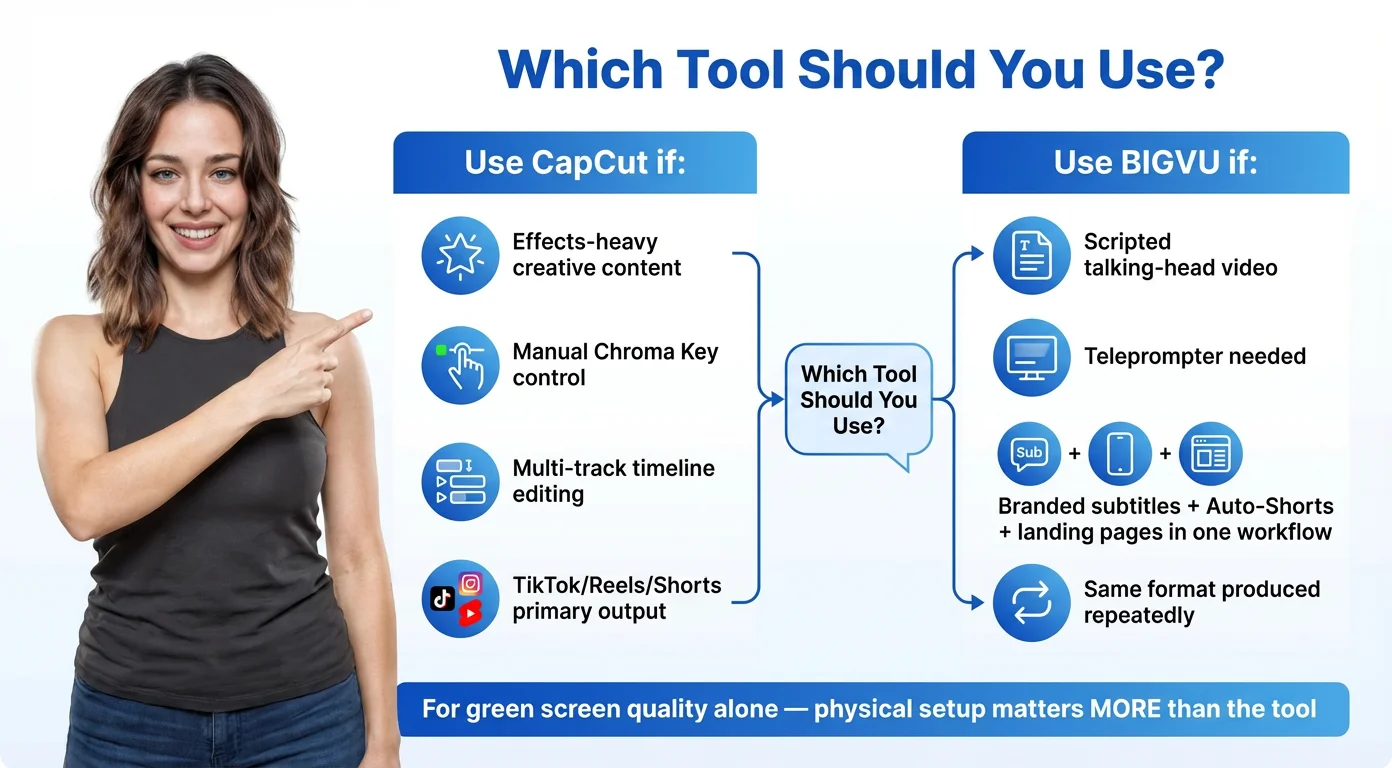
You're building effects-heavy, visually creative content where the editing style is part of the product. You want manual control over Chroma Key settings and the ability to correct AI removal errors with Custom Cutout. You're comfortable with a multi-track timeline and want to combine green screen footage with B-roll, transitions, and layered effects in a single project. Your primary output is social content — TikTok, Reels, Shorts — where CapCut's template library and trend-aligned effects add value.
Use BIGVU for Green Screen If...
Your main format is scripted talking-head video — coaching, demos, thought leadership, client education. You want to record with a teleprompter so your delivery is confident and on-script without memorizing. You need branded subtitles, Auto-Shorts, and video landing pages built into the same workflow rather than stitched together from multiple subscriptions. You're producing the same format repeatedly and want consistency across your content library without per-video template selection.
If You're Deciding Based on Green Screen Quality Alone
Both tools produce comparable results in clean shooting conditions. CapCut has more manual correction options when AI removal misfires. BIGVU's AI removal is faster and requires fewer steps for a straightforward talking-head shot. The physical setup — even lighting, 3–5 feet of distance from the backdrop, solid clothing colors — matters more than which tool you use.