

How to Download CapCut: PC, Mobile, and Web
Where to Download Safely
The only reliable source for CapCut desktop is the official website at capcut.com. Avoid third-party download sites, APK mirrors, and any installer that isn't from ByteDance's official distribution — these frequently bundle adware or modified software. The desktop app runs on Windows 10 and later and macOS 10.15 Catalina and later. You'll need a CapCut or TikTok account to sign in after installation.
Mobile versions are available through the Apple App Store and Google Play. The web editor at capcut.com requires no installation — just a browser and a login.
PC vs Mobile vs Web: What's Actually Different
These aren't the same product with different interfaces. Each version has distinct capabilities:
Desktop (Windows/macOS) — The most capable version. Multi-track timeline, keyframe animation, chroma key, advanced stabilization, and the full AI toolkit. Best for anything more complex than a basic clip edit.
Web editor — Browser-based, no install required. Covers basic edits and template use, but slower than desktop and limited on advanced features. Performance depends on your connection and browser.
Mobile app — The most popular version and where trending templates originate. Best for social-first, effects-driven content. Limited for multi-track or complex projects.
Cross-Platform Syncing: What to Expect
Syncing projects across devices requires a CapCut account and cloud storage. The free plan caps cloud storage at a level that fills quickly on larger projects — one hour of 1080p footage is roughly 10–15 GB. Pro includes 100 GB+, which covers most individual workflows.
One persistent caveat: projects that originated from a mobile template sometimes break or display incorrectly when opened on desktop. CapCut hasn't fully resolved this, so treat mobile-to-desktop sync as workable but imperfect, especially for template-based projects.
![[object Object]](/blog/images/airtable/section1-capcut-complete-guide-2026-download-templates-pricing-when-s.webp)
How to Use CapCut Templates: Mobile, Desktop, and Web
How Templates Work on Mobile
Open the app and tap the Templates tab. Browse trending content or search by keyword — "real estate," "fitness," "product showcase" — then tap a template to preview it. Tap Use Template, select your clips from the camera roll to replace the placeholders, adjust text overlays and timing, and export. The mobile template library is the most extensive of the three platforms and updates frequently to reflect current trends.
Two things to know before you start: some templates are region-locked and won't appear outside certain markets, and templates marked Pro will add a watermark to exports on the free plan. Keep the app updated — older versions don't surface newer templates.
How Templates Work on Desktop
Templates on desktop are accessed from the project creation screen. The library differs from mobile — some mobile-exclusive templates aren't available on desktop and vice versa. The editing experience after selecting a template is more capable on desktop: keyframe adjustments, multi-track editing, and finer control over timing. The tradeoff is that cloud-synced projects originating from mobile templates sometimes break during sync and need manual fixes before they'll render correctly.
How Templates Work on Web
The web editor has a growing but still limited template library compared to mobile and desktop. The flow is identical to mobile: browse, select, replace clips, export. The main advantage is not needing to install anything. The main limitation is rendering speed — export times are longer and preview performance varies with connection quality.
Common Template Troubleshooting
Templates not loading: check your internet connection and app version. If a specific template disappeared, it may have been removed or is region-restricted.
Unexpected watermark on a free template: this is a known issue from the 2025 restructure — some previously free templates were reclassified as paid.
Audio sync problems after replacing clips: typically caused by a replacement clip that's a different length than the original placeholder. Fix timing manually in the editor's timeline.
![[object Object]](/blog/images/airtable/section2-capcut-complete-guide-2026-download-templates-pricing-when-s.webp)
![[object Object]](/blog/images/airtable/section3-capcut-complete-guide-2026-download-templates-pricing-when-s.webp)
Where CapCut Falls Short — and Where BIGVU Fills the Gap
What CapCut Doesn't Include
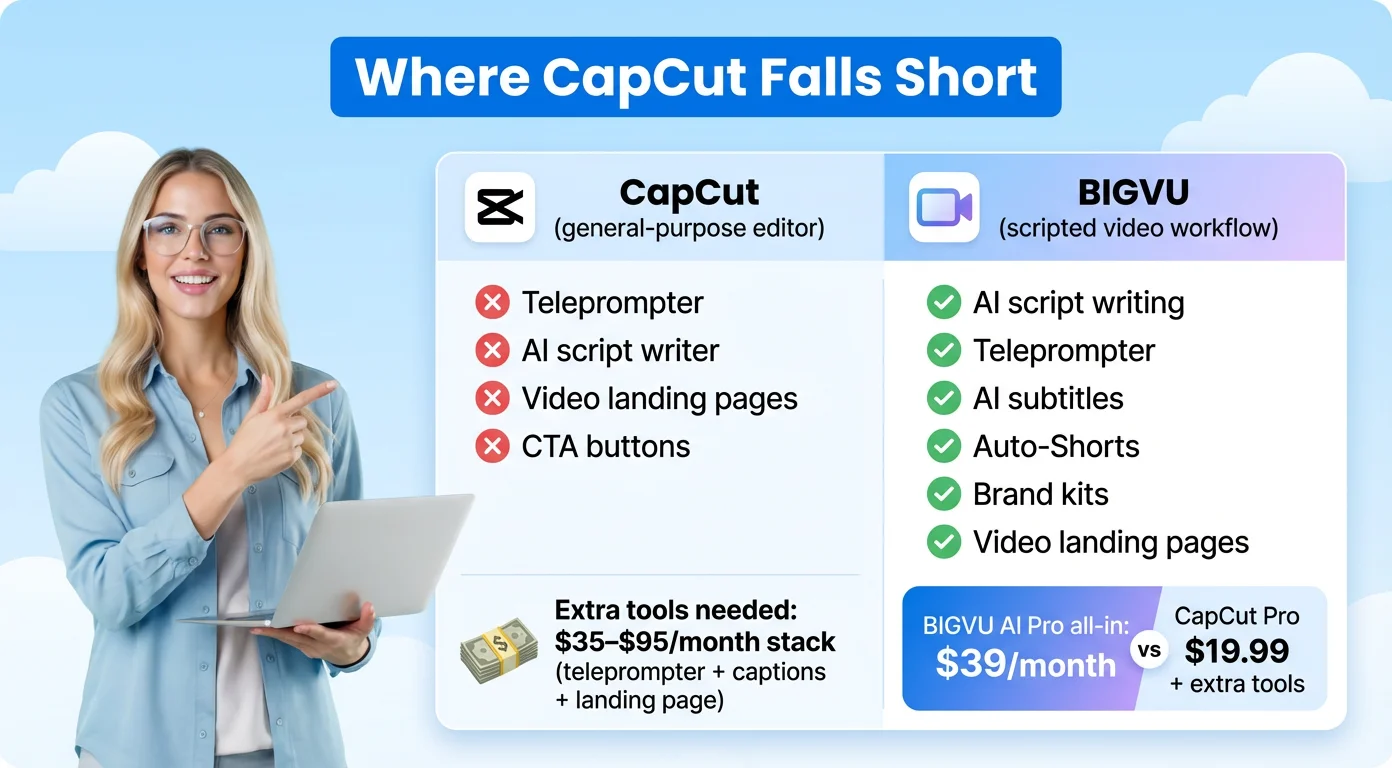
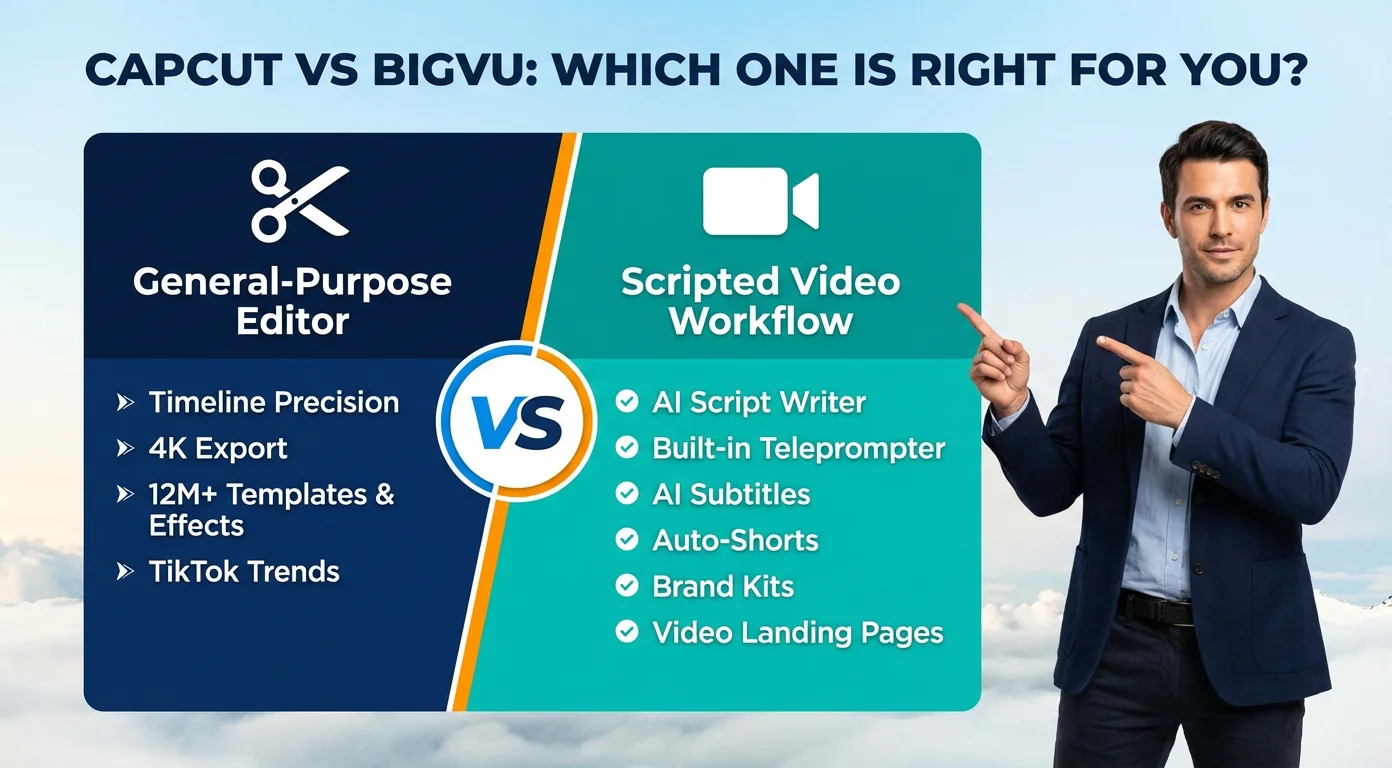
CapCut is a general-purpose editor, and "general-purpose" matters. It has no built-in teleprompter, no AI script writer, no video landing pages, and no CTA buttons. For casual social content, none of that matters. For creators whose main format is scripted talking-head video — coaching content, product demos, market updates, client education — those gaps add up quickly.
Covering them typically means adding a teleprompter app ($5–15/month), a branded captioning service ($10–30/month), and a landing page tool for lead capture ($20–50/month). That stack costs $35–95/month before adding any AI generation capability, and none of those tools integrate with each other.
What BIGVU Does Differently
BIGVU is purpose-built for the scripted talking-head workflow. Rather than requiring multiple tools, it handles the full pipeline from one platform: AI script writing, built-in teleprompter, AI subtitles with custom brand fonts and colors, Auto-Shorts (which automatically generates short clips from long-form content with branding already applied), brand kits that apply your logo and colors to every video without manual setup per clip, and video landing pages with custom CTA buttons for lead generation.
The pricing comparison is closer than it looks. BIGVU AI Pro at $39/month includes the complete workflow. CapCut Pro at ~$19.99/month is a capable editor, but adding the tools needed to match the same workflow typically pushes total cost above BIGVU's all-in price.
Templates vs. Brand Kits: Two Different Philosophies
CapCut's template library gives you thousands of visually dynamic formats — ideal for effects-heavy montages and trend-driven content where the visual style is the point. You pick a template, swap your clips in, and export. BIGVU's brand-kit approach works differently: set up your logo, fonts, and colors once, and every video applies them automatically without template selection. Auto-Shorts extends this further — upload a long video and BIGVU generates consistently formatted short clips with your branding already applied.
Many creators use both: CapCut for effects-driven social content, BIGVU for professional scripted video. If you need only one, the choice is straightforward: CapCut for general-purpose editing with a large template and effects library; BIGVU if scripted talking-head video is your primary format and you want a workflow that goes from blank page to published landing page without stitching together multiple subscriptions.
CapCut Quick-Decision Checklist
Use CapCut Free If...
You're creating social-first content, you only need 1080p exports, the templates you want aren't marked Pro, and you don't need cross-device cloud sync beyond what the free storage allows. The free plan is genuinely capable — it covers a lot of real use cases without requiring a subscription.
Upgrade to CapCut Standard If...
You're primarily a mobile user, you want watermark-free exports on Pro-tagged templates and effects, and you don't need 4K output or the full AI toolkit. Subscribe via capcut.com, not the app store, to avoid paying the platform markup.
Upgrade to CapCut Pro If...
You need 4K export, the full AI toolkit (camera tracking, vocal isolation, speaker ID captions), 100 GB+ cloud storage for cross-device sync, or access to the royalty-free asset library. The annual plan at $179.99 saves about 25% over monthly billing.
Consider BIGVU Instead If...
Scripted talking-head video is your main format — coaching, demos, client education, market updates. If you're already piecing together a teleprompter app, a captioning service, and a landing page tool, BIGVU's all-in-one platform consolidates that stack into one subscription and adds AI script writing and Auto-Shorts on top. The per-video workflow is faster, and every output includes lead-capture capability that CapCut doesn't offer at any tier.