
What Is a TikTok Stream Key and Who Can Get One?
What the Stream Key Actually Does
A TikTok stream key is a unique alphanumeric code that authenticates your connection between broadcasting software and your TikTok account. When you paste it into OBS, Streamlabs, Restream, or any RTMP-compatible tool, that software can push a live video signal directly to TikTok as if you were broadcasting from the app.
The stream key works alongside a server URL — TikTok provides both when you initiate a live session from the desktop. The server URL tells the software where to send the stream; the key authenticates who's sending it. Never share your stream key with anyone you don't fully trust. It grants broadcast access to your TikTok profile, and while it expires after each session (or when you log out), a leaked key can be used before it expires.
Eligibility Requirements
Not every TikTok account can go live. To access live streaming — including the stream key — you need a minimum of 1,000 followers. Accounts below that threshold won't see the Go Live option on desktop or mobile. There's no workaround for this; you need to meet the follower requirement before the feature unlocks.
Once eligible, you'll see a Go Live button on the left sidebar when logged into TikTok.com on desktop. If that button isn't there, your account hasn't crossed the threshold yet.
Stream Key Duration and Security
Each stream key is valid for a maximum of 2 hours. If your session runs longer or you start a new one, TikTok generates a fresh key. The key also resets when you log out. This means you need to copy a new stream key each time you start a live session — you can't reuse yesterday's key.
![[object Object]](/blog/images/airtable/section1-how-to-get-a-tiktok-stream-key.webp)
How to Find Your TikTok Stream Key: Step-by-Step
Step 1 — Log Into TikTok on Desktop
Go to TikTok.com in your browser and log into your account. On the left sidebar, look for the Go Live button. If you don't see it, your account doesn't yet meet the 1,000-follower requirement.
Step 2 — Configure Your Live in the Live Center
Clicking Go Live opens the Live Center. Here you set up the basics before your stream goes public: choose a cover image, write a title, and select a topic category. These settings affect discoverability — a clear, specific title helps TikTok surface your stream to relevant viewers. Once configured, click Save and Go Live.
Step 3 — Copy Your Server URL and Stream Key
After clicking Save and Go Live, TikTok generates your Server URL and Stream Key. Both appear on screen — copy them. The Server URL is typically rtmp://push.live.tiktok.com/live (or similar). The Stream Key is the long unique string below it. You'll paste both into your streaming software in the next step. The key is only valid for 2 hours, so start your stream setup immediately after copying it.
![[object Object]](/blog/images/airtable/section2-how-to-get-a-tiktok-stream-key.webp)
How to Set Up TikTok Streaming in OBS and Third-Party Software
Setting Up in OBS Studio
OBS Studio is the most widely used free broadcasting tool and works well with TikTok. After copying your Server URL and Stream Key from TikTok, open OBS and go to Settings → Stream. Set Service to Custom, paste the Server URL into the Server field, and paste your Stream Key into the Stream Key field. Click Apply and OK.
Back in the OBS main window, set up your scene — add your webcam as a Video Capture Device source, add any overlays, graphics, or additional inputs you want. When your scene is ready, click Start Streaming. OBS will push the signal to TikTok and your live session will begin.
Other Compatible Tools
The same process works in Streamlabs OBS, XSplit, and Restream Studio — all support custom RTMP, so the Server URL and Stream Key from TikTok paste in the same way. Restream is particularly useful if you want to broadcast to TikTok and another platform (YouTube, Twitch, LinkedIn) simultaneously from a single stream output.
Common Setup Issues
Stream not connecting: double-check that you copied the full Server URL and Stream Key without any extra spaces. Stream keys expire after 2 hours — if you copied it more than 2 hours ago or logged out in between, go back to TikTok and generate a new one.
Black screen or no video: check that your video capture device is selected in OBS and that no other application is using the camera exclusively.
Low quality output: in OBS Settings → Output, set Video Bitrate to at least 3000 Kbps for 1080p. Match your canvas resolution in Video settings to avoid downscaling artifacts.
![[object Object]](/blog/images/airtable/section3-how-to-get-a-tiktok-stream-key.webp)
How BIGVU Makes Your TikTok Live More Professional
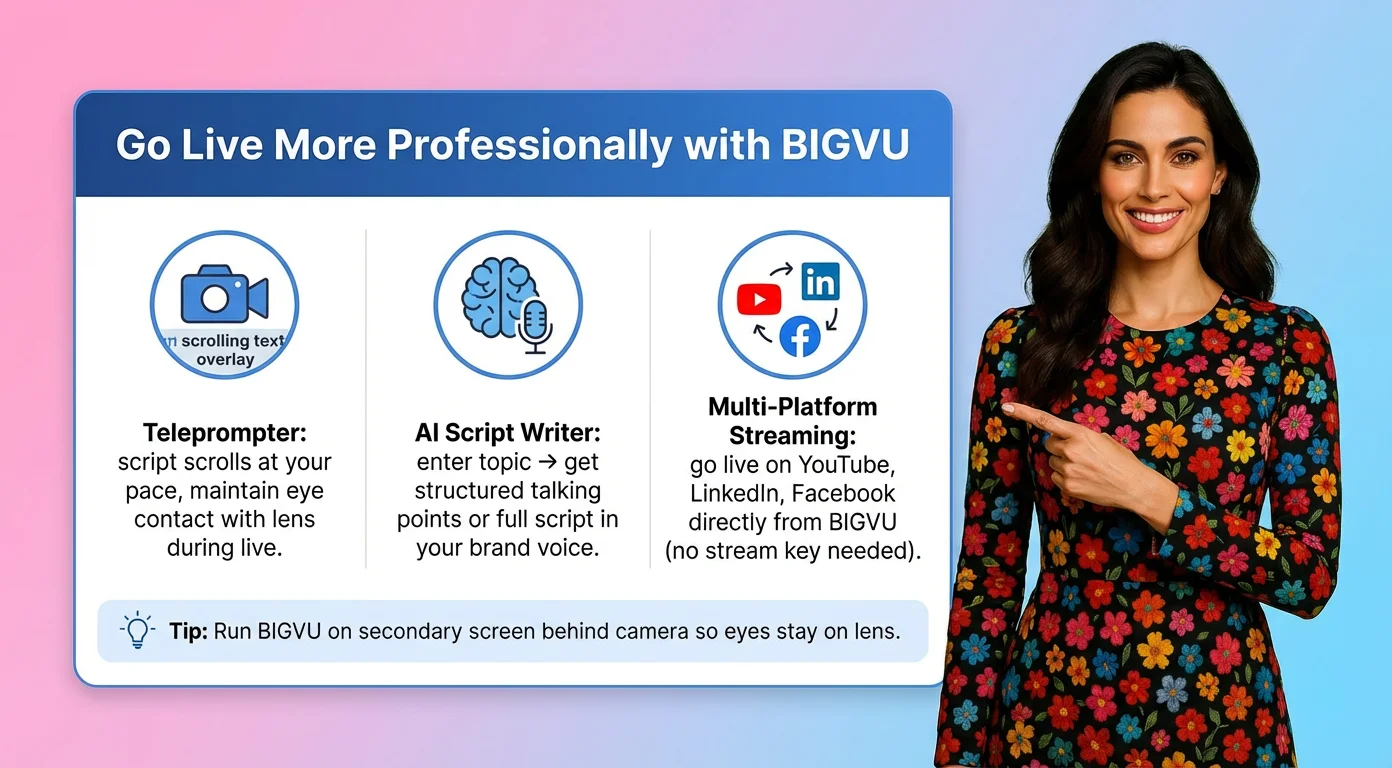
Teleprompter During Live Streams
The biggest challenge in live streaming isn't the technical setup — it's knowing what to say and saying it confidently on camera without stumbling. BIGVU's teleprompter scrolls your script at your reading pace while you maintain eye contact with the lens. For live streams where you're delivering structured content — a Q&A opener, a product walkthrough, talking points for a discussion — this eliminates the freeze-and-fumble problem that kills professional credibility.
BIGVU works on desktop, iOS, and Android, so you can use it alongside your streaming setup. Run BIGVU on a secondary screen or device positioned behind your camera so your eyes stay on the lens while your script stays readable.
AI Script Writing Before You Go Live
Going live without a plan is the fastest way to fill airtime with filler. BIGVU's AI script writer generates structured talking points, full scripts, or Q&A outlines based on your topic — you enter a subject and it produces content in your brand voice. Running through your script in BIGVU before the stream starts means you have a clear structure to follow even when live chat is pulling your attention in different directions.
Multi-Platform Live Streaming
BIGVU supports live streaming directly to YouTube, LinkedIn, and Facebook — platforms that don't require a stream key workaround. If your audience is split across platforms, you can go live on those channels through BIGVU while simultaneously streaming to TikTok via OBS and your stream key. This multi-platform approach maximises reach without requiring separate setups for each platform.
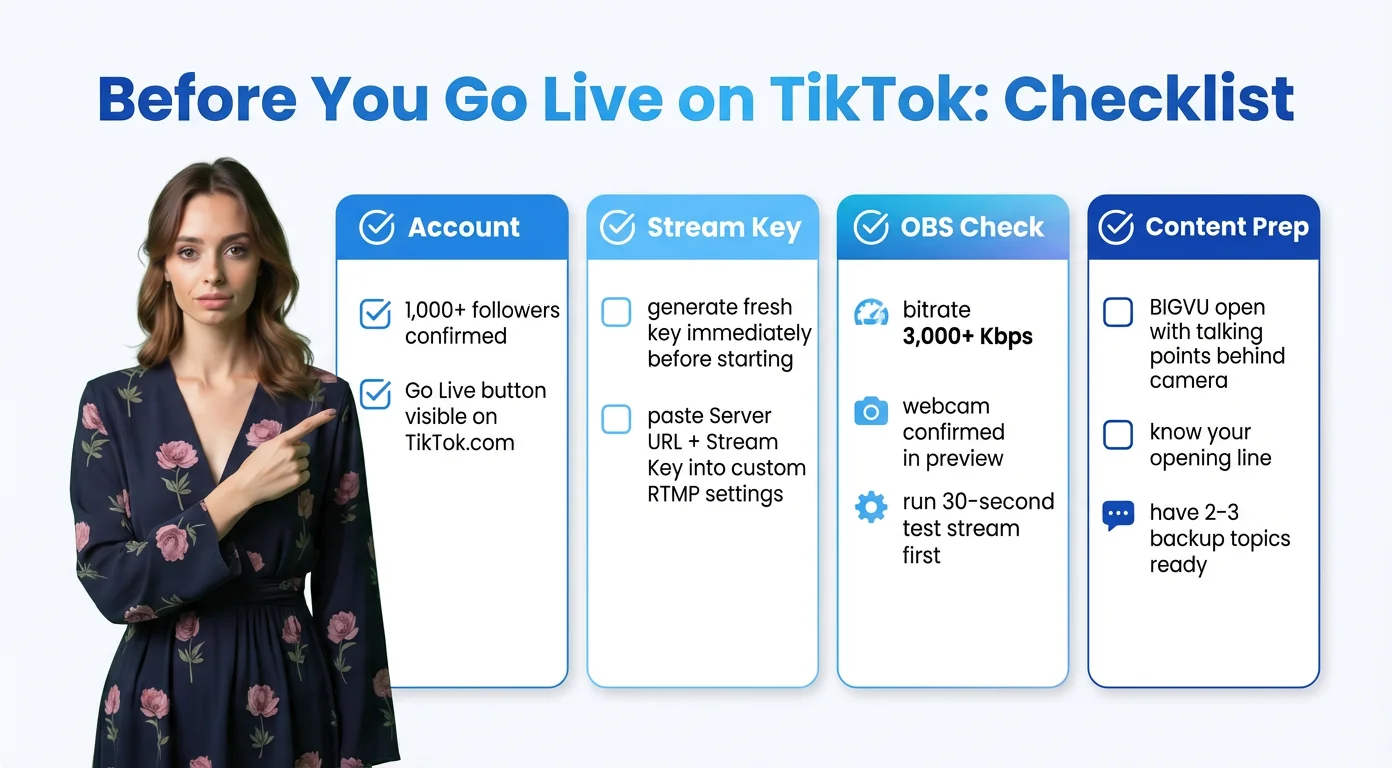
TikTok PC Live Checklist: Before You Go Live
Account and Eligibility
Confirm your account has 1,000+ followers and that the Go Live button appears on TikTok.com. If it doesn't appear, you're not yet eligible regardless of what other settings you adjust.
Stream Key Setup
Generate a fresh stream key from TikTok Live Center immediately before starting — don't use a key from a previous session. Copy both the Server URL and Stream Key accurately, paste them into your streaming software under custom RTMP settings, and test your connection before going public.
OBS / Software Check
Set your video bitrate to at least 3,000 Kbps. Confirm your webcam is selected and displaying correctly in preview. Add any overlays, titles, or graphics to your scene. Do a 30-second test stream to a private or unlisted destination to verify audio and video quality before going live on TikTok.
Content Prep
Have your talking points or script ready in BIGVU — opened and positioned behind your camera before the stream starts. Know your approximate run time, your opening line, and at least 2–3 topics to fall back on if the conversation stalls. A prepared opener eliminates the awkward first 30 seconds that lose viewers before they've decided to stay.