
What CapCut Desktop does well
CapCut was built by ByteDance — TikTok's parent company — and that origin is visible in everything the tool does well. It is optimized for short-form vertical content, and in that lane it is genuinely hard to beat.
Template library and trend alignment
The template library is extensive and updated frequently to reflect current trends. If a particular editing style is dominating TikTok this week, CapCut typically has a template for it within days. For creators whose content depends on riding format trends — transitions, text animations, specific visual aesthetics — this is a meaningful competitive advantage over editors that update on slower cycles.
AI features
CapCut has added a meaningful set of AI tools in recent versions. Text-to-speech converts typed scripts into voiceovers across a range of voice styles — useful for faceless channels or anyone who wants audio without recording. The Long Video to Shorts feature scans uploaded footage and generates clip suggestions, which works reasonably well for repurposing content quickly. The AI script generator produces ideas and draft scripts from a topic prompt, though outputs don't follow any specific brand voice.
Auto-captions are one of CapCut's most used features. The transcription is fast — captions appear within seconds of processing — though accuracy varies. On clear audio with standard pacing, it performs well. On accented speech, fast delivery, or technical vocabulary, manual correction is usually needed. Caption styling options — fonts, colors, animations — are available but the more polished options require a Pro subscription.
Core editing tools
The timeline editor handles the basics competently: trimming, speed adjustment, audio cleanup, background removal, and transitions are all accessible without a tutorial. Audio enhancement — background noise reduction and voice clarity improvement — works well enough to salvage clips recorded in less-than-ideal environments. The green screen (chroma key) feature functions reliably. Export quality goes up to 4K, though performance on large files depends heavily on your machine's RAM and internet connection.
For a solo creator making short-form social content on a budget, these tools cover most of what's needed.
![[object Object]](/blog/images/airtable/section1-capcut-online-desktop-editor-review.webp)
Where CapCut Desktop falls short
The same origin that makes CapCut strong for TikTok content creates real gaps when it's used for professional business video. Several of these limitations have become more pronounced as CapCut has expanded its freemium model.
Paywall creep
The most consistent complaint from long-term CapCut users is that features which were free have progressively moved behind the Pro subscription. Auto-captions, specific effects, watermark removal on exports, and advanced AI features have all shifted at various points. The practical experience is frustrating: you spend time building a project, reach the export stage, and discover the resolution you need or the effect you used requires an upgrade. Multiple Trustpilot reviews document this experience specifically.
One reviewer summed it up: "I spend several hours making a video only to be told 99% of the transitions etc were only for Pro." Another reported being charged $179 after cancelling a free trial, with no resolution from support. These aren't isolated complaints — billing confusion and difficulty cancelling subscriptions appear consistently across independent review platforms.
No real teleprompter
The mobile app has a basic teleprompter mode. The desktop and browser editor does not support recording and reading a script simultaneously in any meaningful way. For anyone creating talking-head content — coaching videos, sales updates, educational explainers, real estate walkthroughs — this is a workflow gap that requires a separate tool entirely.
Branding limitations
CapCut lets you add a logo and apply text overlays manually. It does not have a brand kit that saves your fonts, colors, caption style, and logo placement and applies them consistently across projects. Every video requires manual setup. For a solo creator making one video a week, this is manageable. For a business producing consistent content at any volume, it creates meaningful overhead and consistency risk.
Privacy considerations
As a ByteDance product, CapCut is subject to the same data collection policies that have attracted government scrutiny in several countries regarding TikTok. For individual creators making entertainment content, this is a personal decision. For businesses handling client data, recording sensitive presentations, or operating in regulated industries, it's worth factoring into the tool choice.
Support
Customer support is a documented weak point. Multiple independent reviews describe automated responses, unresolved billing disputes, and no accessible human support channel. CapCut does not offer onboarding, coaching, or any live assistance for resolving issues.
![[object Object]](/blog/images/airtable/section2-capcut-online-desktop-editor-review.webp)
CapCut pricing: what you actually get on each plan
CapCut operates on a freemium model, and the gap between the free and paid experience has widened significantly in recent versions.
The free plan gives you access to the core editor, templates, basic effects, and auto-captions. Exports on the free plan carry a CapCut watermark, and certain effects, advanced AI features, and higher-quality export options require an upgrade. The exact features gated behind Pro have shifted over time, which is the root of most user frustration.
CapCut Pro costs approximately $7.99 to $9.99 per month depending on your region and platform, with an annual option that reduces the monthly rate. Pro removes the watermark, unlocks advanced AI tools, higher export quality, and the full effects and template library. There is also a CapCut for Teams tier aimed at businesses, priced separately and designed for multi-user collaboration — but most individual creators and small businesses won't need it.
The practical issue isn't the price itself — $8 to $10 per month is reasonable for a capable editor. The issue is predictability. Feature availability on the free tier changes without notice, and the billing and cancellation process has generated enough consistent complaints that it's worth approaching the Pro subscription with a clear understanding of the cancellation terms before committing.
For context: CapCut Pro covers editing and export. It does not add a teleprompter, a brand kit that auto-applies across projects, video email, AI eye contact correction, or a social scheduler. Those capabilities require either additional tools or a different platform entirely.
![[object Object]](/blog/images/airtable/section3-capcut-online-desktop-editor-review.webp)
CapCut vs BIGVU: which one fits your workflow?
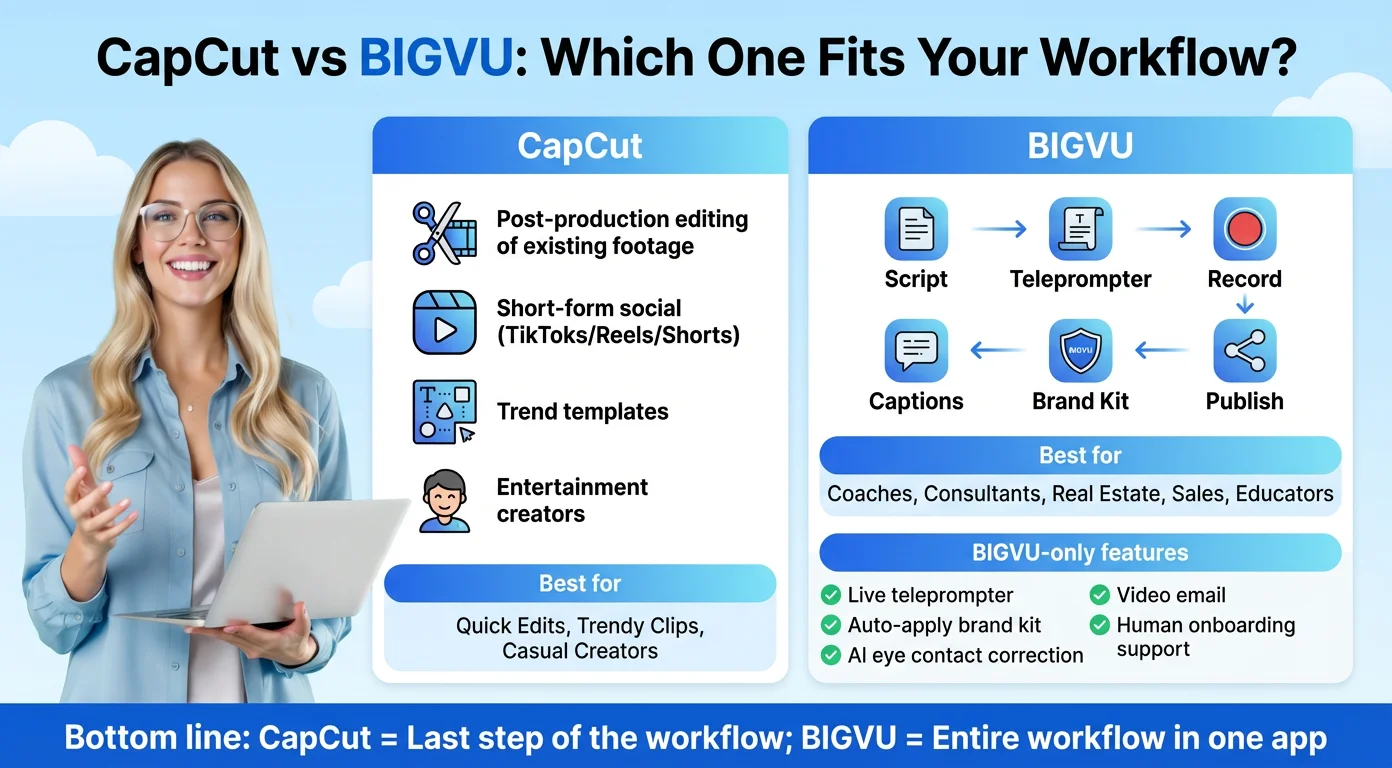
CapCut and BIGVU are aimed at different primary use cases, and the decision between them is mostly determined by the type of content you make rather than a feature-by-feature comparison.
CapCut is built for post-production editing of footage you've already captured. You bring your clips to CapCut, and it helps you cut, caption, style, and export them. It excels when the output is short-form social content — TikToks, Reels, Shorts — and when trend-aligned templates and a large effects library are valuable. For entertainment creators and social media managers working primarily from recorded footage, CapCut is a genuinely strong tool.
BIGVU covers a different loop. It starts before the recording: the AI Script Generator helps you write the content, the teleprompter lets you deliver it on camera while reading your script, and after recording the platform handles captions, Brand Kit application, editing, and publishing — all without switching apps. For anyone who appears on camera regularly — coaches, consultants, real estate agents, sales professionals, educators — this integrated workflow removes the multi-app friction that CapCut creates.
The specific gaps where BIGVU addresses what CapCut lacks: a live teleprompter during recording, a brand kit that saves and auto-applies your visual identity, AI eye contact correction for teleprompter recordings, video email for sending clips directly from Gmail or Outlook, and human support with onboarding assistance.
The honest summary: if your content is primarily entertainment-focused short clips and you're comfortable in a timeline editor, CapCut handles that well at a reasonable price. If you record yourself speaking to camera for professional purposes and need a workflow that goes from script to published video efficiently, CapCut covers only the post-production portion — and not the parts that matter most for that use case.
Verdict: is CapCut Desktop worth it?
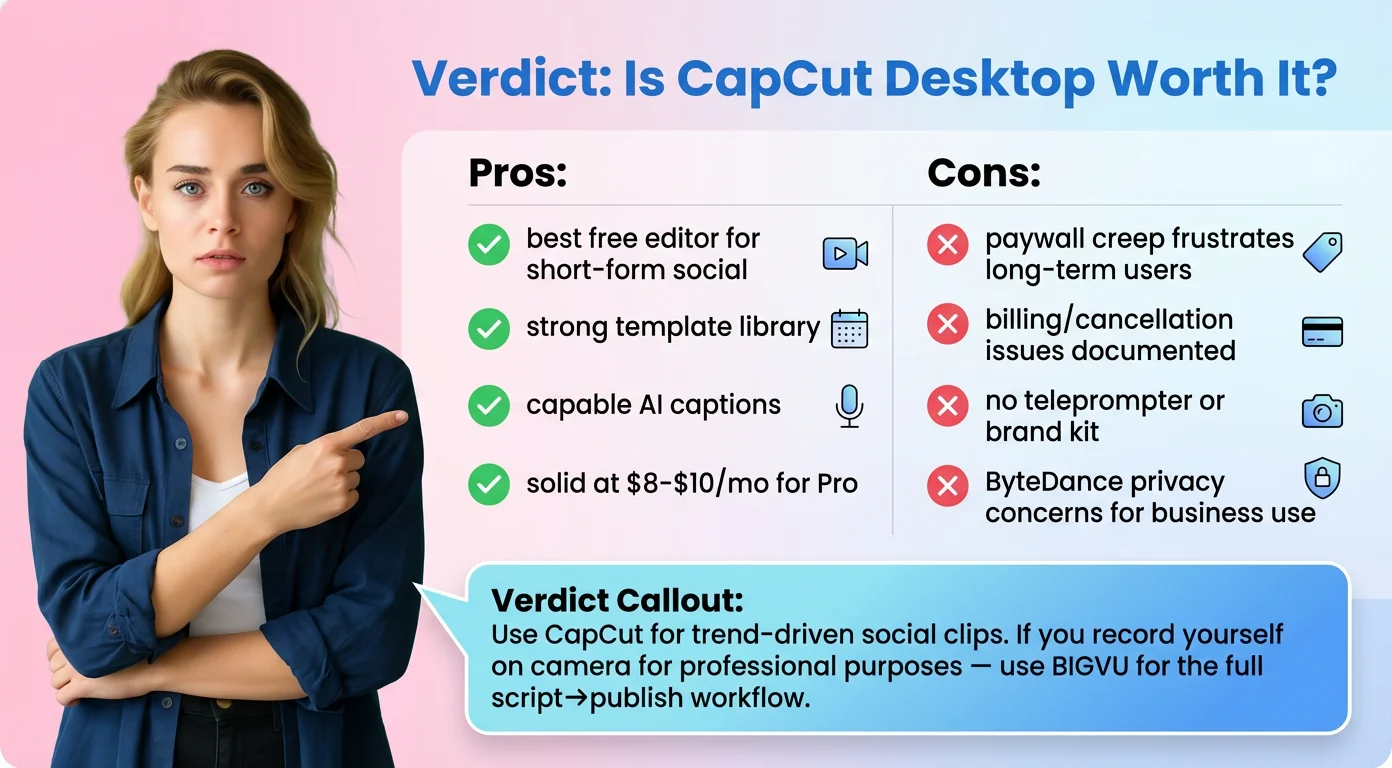
For short-form social content, CapCut Desktop is one of the best free editors available. The template library, AI captions, and editing tools are genuinely capable for TikToks, Reels, and Shorts. At $8 to $10 per month for Pro, it's reasonably priced for what it delivers in that lane.
The caveats are real though. The paywall creep is frustrating and has alienated long-term users. The billing and cancellation process has generated documented complaints. There is no meaningful teleprompter or brand kit. And as a ByteDance product, privacy considerations are legitimate for business use.
For creators whose work starts on camera rather than in the editing timeline — anyone speaking directly to an audience about their expertise, their listings, their services, or their ideas — CapCut is the wrong starting point. The workflow it covers is the last step. BIGVU covers the full cycle, including the steps before you hit record and the distribution steps after you export.
Use CapCut for what it was built for: quick, trend-driven social clips. Use something else when your content requires more.