
Top Face Filter Apps for Professional Video Results
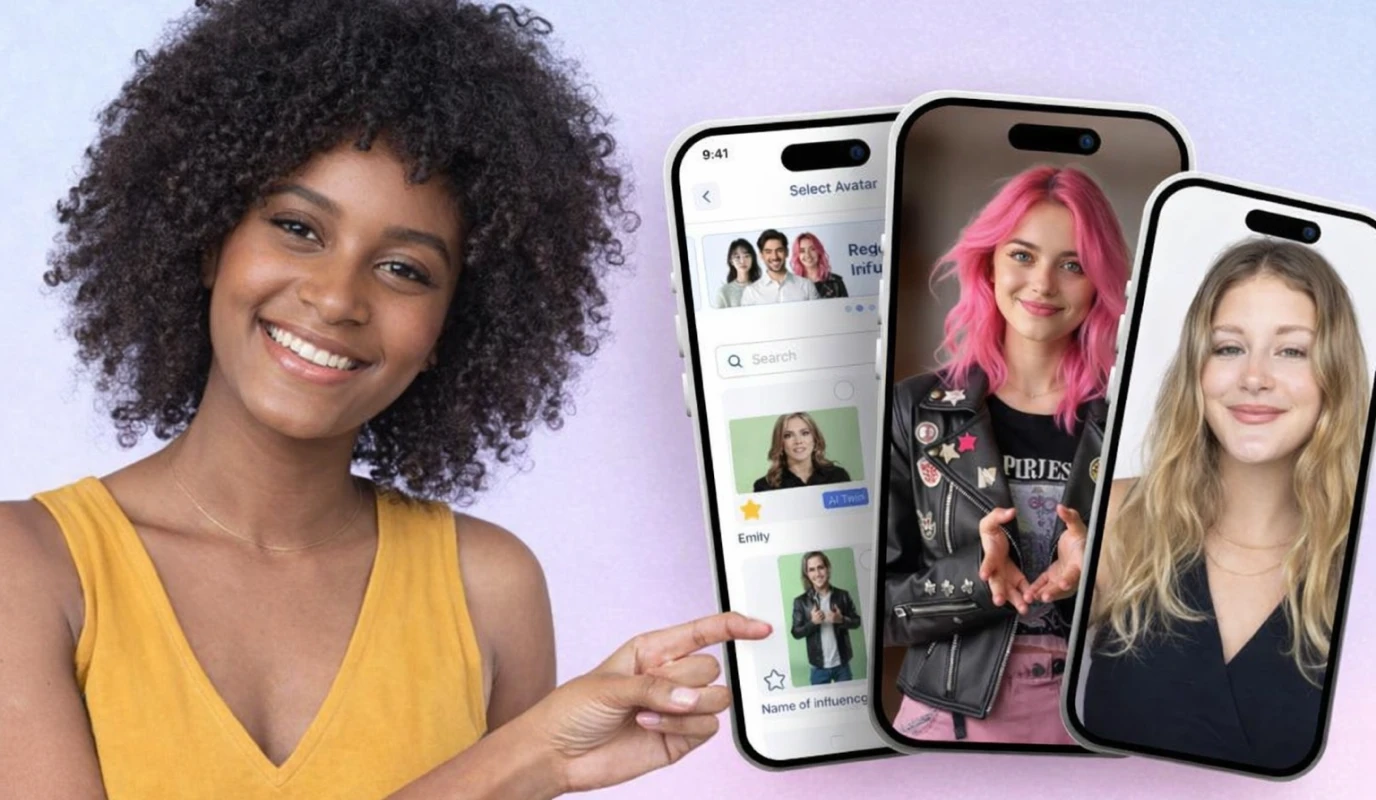
The BIGVU Beauty Filters Cam
.- Skin Smoothing: Instantly evens out skin tone and hides minor blemishes.
- Lighting Boost: Brightens your face to compensate for poor natural light.
- Professional Polish: Provides a clean, "no-filter" look that feels authentic.
How to Apply Professional Filters in 4 Steps
- .
- Select the Beauty Icon: Look for the magic wand or "Retouch" settings before you hit record.
- Adjust Intensity: Use the slider to find a balance. Aim for a 30-50% setting to keep the look natural.
- Check Your Background: Ensure the filter doesn't blur your surroundings unnaturally; professional filters should focus only on the face.
Top Alternatives for Retouching
. These tools bridge the gap between DIY production and high-end quality without the Hollywood price tag.![[object Object]](/blog/images/airtable/section1-look-better-on-camera-best-face-filter.webp)
Stay in the Spotlight with 360 Auto Face and Body Tracking
One of the biggest challenges for solo creators is the "statue effect"—staying frozen in one spot because you’re afraid of moving out of the camera frame. This static approach can make your videos feel stiff and less engaging. 360-degree auto-tracking technology acts as your virtual cameraman, allowing you to move naturally while the camera follows your every step.
The Power of Pivo and BIGVU Integration
.- Face and Body Tracking: Advanced AI ensures the lens stays locked on you, whether you are sitting, standing, or walking across a room.
- Hands-Free Freedom: Eliminate the need for a dedicated camera operator, significantly reducing your production costs.
- Seamless Teleprompter Use: Read your script from the BIGVU teleprompter while the hardware rotates to keep you centered.
How to Set Up Your Virtual Cameraman in 4 Steps
- Mount Your Device: Secure your smartphone onto the 360 tracking pod and ensure it is level.
- Pair via Bluetooth: Open the BIGVU app and connect to your tracking hardware through the settings menu to sync movement with recording.
- Select Tracking Mode: Choose between "Face Tracking" for tight shots or "Body Tracking" if you plan on moving extensively throughout the frame.
- Test Your Range: Do a quick walk-through to ensure the pod rotates smoothly and your lighting remains consistent as you move.
Master Your Live Presence with Professional Webcam Filter Tools
Elevate Your Virtual Meeting Room
Using a dedicated webcam filter tool ensures you look polished regardless of your environment. These tools act as a bridge between your hardware and your recording software, allowing for real-time enhancements that standard conferencing apps lack.
- Camo: Allows you to use your smartphone’s superior lens as a webcam with built-in bokeh (background blur) and professional color grading.
- ManyCam: Ideal for adding professional overlays, lower-thirds, and multi-camera switching for a broadcast-quality feel.
- CyberLink YouCam: Features advanced AR "makeup" and skin smoothing that looks natural even in high-definition 4K streams.
How to Sync Filters with BIGVU Desktop in 4 Steps
- Launch Your Filter App: Open your chosen software (like Camo or ManyCam) first to initialize the video processing.
- Configure Your Look: Adjust the "Skin Smoothing" and "Brightness" sliders to eliminate shadows under the eyes and even out your complexion.
- Select the Virtual Camera: In the BIGVU desktop recorder or your conferencing app, change the camera input from "Integrated Webcam" to your filter app's name (e.g., "ManyCam Virtual Camera").
- Lock Your Settings: Save your configuration as a preset to ensure a consistent brand look across every video you record.