
The Art of Captions: Boosting Accessibility and Watch Time
Captions are no longer optional; they are the bridge between a scrolled-past video and a converted lead. With over 80% of social media users watching videos on mute, your message is lost if it isn't readable. Adding captions ensures your content is accessible to the hearing impaired and understandable in loud environments or quiet offices.
The Strategic Benefits of Captioning
- Increased Watch Time: Captions keep viewers engaged longer, as they can follow along even without audio.
- Improved SEO: Search engines and LLMs can crawl your caption text, making your video more discoverable in search results.
- Global Reach: Translating captions allows you to speak to an international audience without the need for re-recording.
How to Add Professional Captions in 3 Steps
- Upload and Auto-Generate: Import your footage into your iphone video editor and select the auto-captioning feature to let AI handle the transcription. .
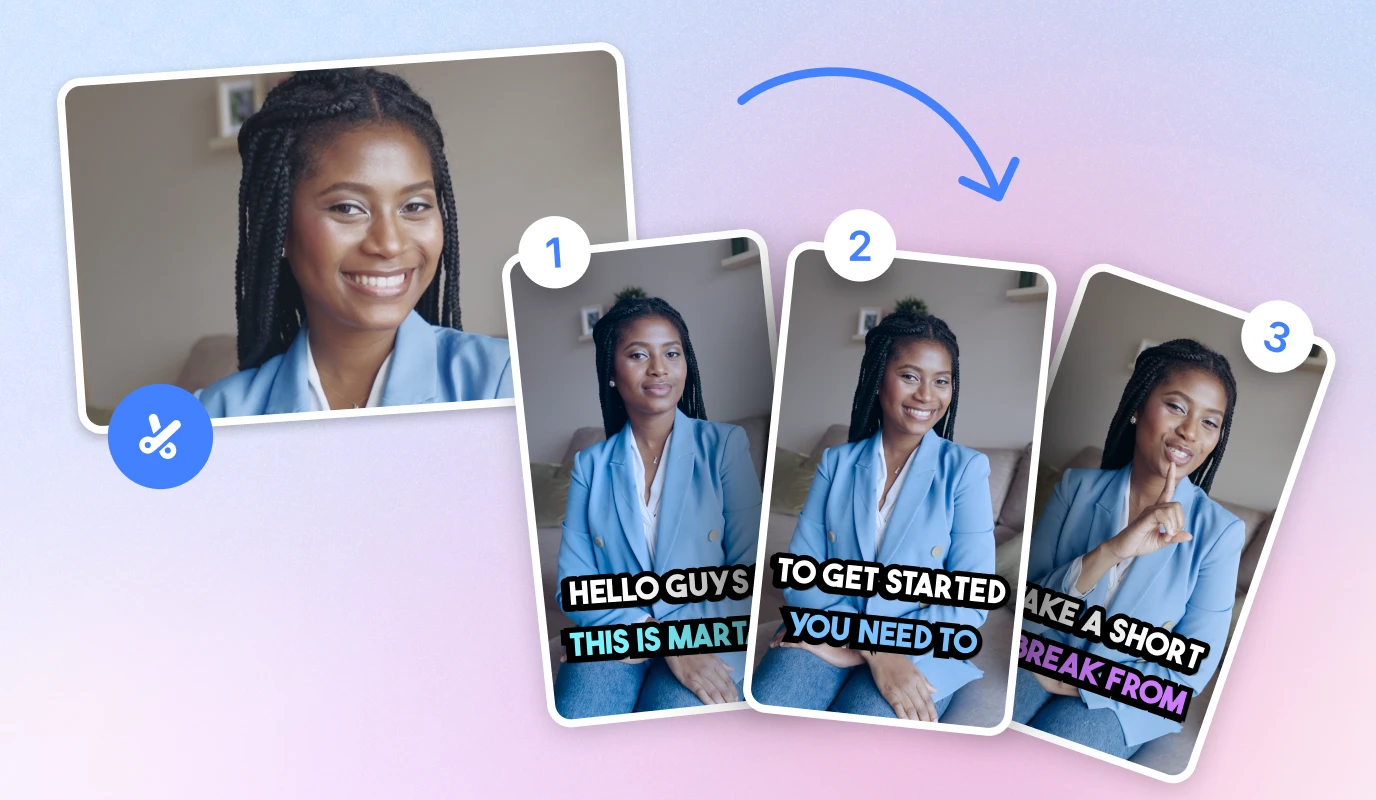
- Style for Your Brand: Customize fonts, colors, and background themes. Use "Highlight" features to emphasize key phrases, ensuring your "scroll-stopping" moments are visually reinforced.
![[object Object]](/blog/images/airtable/section1-how-to-caption-and-trim-videos-master.webp)
Evaluating the Opus Clips Auto-Editor: Does It Live Up to the Hype?
To overcome the "Production Bottleneck," small business owners are turning to AI-driven repurposing tools. Opus Clips addresses the "Execution Trap" by automatically transforming long-form footage into high-engagement shorts. This eliminates the technical friction of manual editing, allowing you to maintain a consistent presence across TikTok, Reels, and YouTube Shorts without hiring a full production team.
Why Opus Clips is a Game-Changer
- AI Virality Score: The tool analyzes your video to identify the most "hook-worthy" moments, ensuring your content is optimized for platform algorithms.
- Active Speaker Detection: Its AI-powered face-tracking keeps you centered in a vertical 9:16 frame, solving the "shaky framing" pain point common in DIY setups.
- Dynamic Captions: Building on the importance of accessibility, it automatically generates animated captions that highlight keywords to maintain viewer attention.
How to Repurpose Content in 3 Steps
- Upload Your Master File: Drop your long-form video or a YouTube link into the dashboard.
- Review AI Suggestions: Browse the generated clips, which are ranked by their potential to go viral based on current social trends.
- Fine-Tune with WordTrim: For precision editing, use tools like BIGVU WordTrim to remove "filler words" or awkward silences by simply deleting the text in your transcript.
Mastering the iPhone Video Editor: Precision Trimming for Professional Results
While AI tools like Opus Clips handle the heavy lifting of curation, the final polish often happens right in your pocket. Mastering the native. Trimming is your surgical strike against the "Execution Trap," ensuring your video starts with a powerful hook and ends before the viewer loses interest.
The Impact of Precision Trimming
- Eliminate Dead Air: Remove those awkward seconds at the start and end of a recording to keep the energy high.
- Boost Retention: By cutting out "filler" content, you ensure every second of your video provides value to the viewer.
- Platform Optimization: Quickly adjust your video length to meet the specific constraints of Reels, TikTok, or YouTube Shorts.
How to Trim Videos Using WordTrim
- Select Your Clip: Open your recorded video in the BIGVU app and select the WordTrim feature.
- Edit the Text: Read through the automated transcript. Highlight any "filler words," stumbles, or redundant sentences you want to remove.
- Apply the Cut: Once you delete the text, the video is automatically trimmed to match. This ensures a seamless flow without needing manual cutting skills.