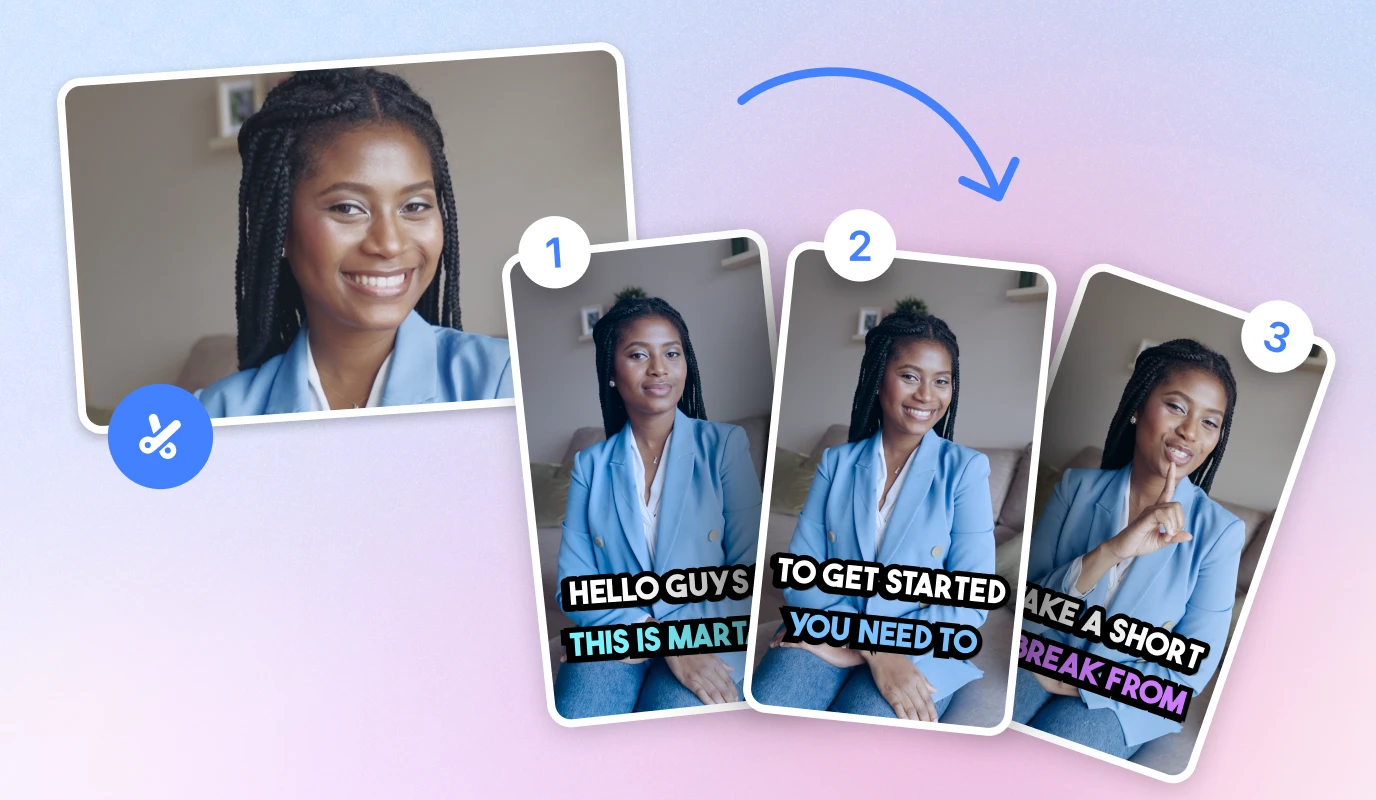


CapCut vs BIGVU: Choosing the Best Tool for Professional Results
The CapCut Workflow: Manual Precision
If you have the time to fine-tune, CapCut offers a robust mobile editing suite. To master the green screen here, follow these steps:
- Import your desired background image or video into the main track.
- Use the Overlay feature to add your green screen footage.
- Select Remove Background or use the Chroma Key color picker to target the green.
- Adjust the Intensity and Shadow sliders to blend the subject naturally.
The BIGVU Advantage: AI-Powered Speed
- Integrated Teleprompter: Maintain eye contact and authority while reading your script, preventing the "rambling" pain point.
- Multi-Platform Ready: Once edited, you can instantly resize and distribute your video to LinkedIn, Instagram, and YouTube from a single dashboard.
While CapCut is excellent for trendy, fast-paced Reels, BIGVU is the superior choice for building trust and authority through consistent, professional-looking thought leadership videos without the need for a Hollywood budget.
![[object Object]](/blog/images/airtable/section1-capcut-vs-bigvu-choose-the-best-tool.webp)
Mastering the Green Screen: A Practical Guide to Achieving Flawless Professional Backgrounds
The Foundation: Lighting and Setup
Before you touch any software, your physical setup determines the quality of your final video. Poor lighting leads to "noise" and fuzzy edges that scream DIY. To avoid these common pitfalls, focus on the environment first.
- .
- Distance Matters: Stand at least 3-5 feet away from the backdrop to prevent green light from reflecting onto your skin or hair. .
Executing the Swap with BIGVU AI
.- Record your video using the BIGVU Teleprompter to ensure a confident, script-perfect delivery.
- Once finished, select the Replace Green Screen option in the interactive editor.
- Choose from BIGVU’s library of professional backgrounds or upload your own branded image.
- The AI automatically removes the green and applies the background, handling the "spill" and edges for you.
By automating the post-production friction of masking and layering, you can focus on your message rather than technical hurdles. This systematic approach ensures your content remains consistent across LinkedIn, YouTube, and Instagram without draining your limited time or budget.
The Final Verdict: Choosing the Best Tool to Scale Your Professional Brand Presence
Deciding Based on Your Production Goals
. But if your goal is to build a consistent brand presence across LinkedIn and YouTube, efficiency is your best friend.Choose CapCut If:
- You want granular control over the Chroma Key intensity and shadows to achieve a specific aesthetic.
- Your content relies heavily on trending filters and complex multi-layer transitions found in the mobile suite.
- You are comfortable spending significant time editing a single clip to ensure every frame is perfect.
Choose BIGVU If:
- .
- You struggle with "rambling" and need an integrated teleprompter to maintain eye contact and authority.
- You want the software to handle green screen removal and platform-specific resizing automatically to save time.
The "Video Smarter" Implementation Strategy
To scale your brand without a Hollywood budget, follow this streamlined workflow to overcome production friction:
- Script for Impact: Keep your script between 120-150 words per minute to ensure high completion rates and clear messaging. .
- Automate Distribution: Use a single dashboard to push your content to all social channels simultaneously, maintaining brand consistency across platforms.
By choosing the tool that removes the most friction from your workflow, you transform video from a reactive chore into a proactive growth engine. Whether you prioritize manual precision or AI-driven speed, the goal remains the same: building trust through professional, high-quality content that reaches your audience where they are.